# Purchase Orders
##### Purchase Orders have been updated to improve item management and provide better control over amounts, taxes, discounts, as well as to facilitate tracking purchasing processes and related details.
#### **Add/Update Purchase orders**
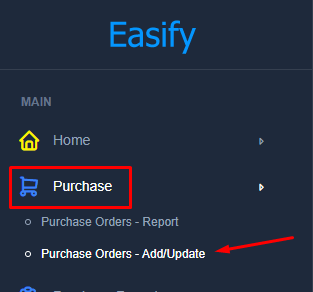
**From the menu---->Purchase-----> Purchase Orders - Add/Update to create a new Purchase Order or update an existing one.**
[](https://kb.easifycloud.com/uploads/images/gallery/2026-04/pfQimage.png)
##### **Search Accounts**
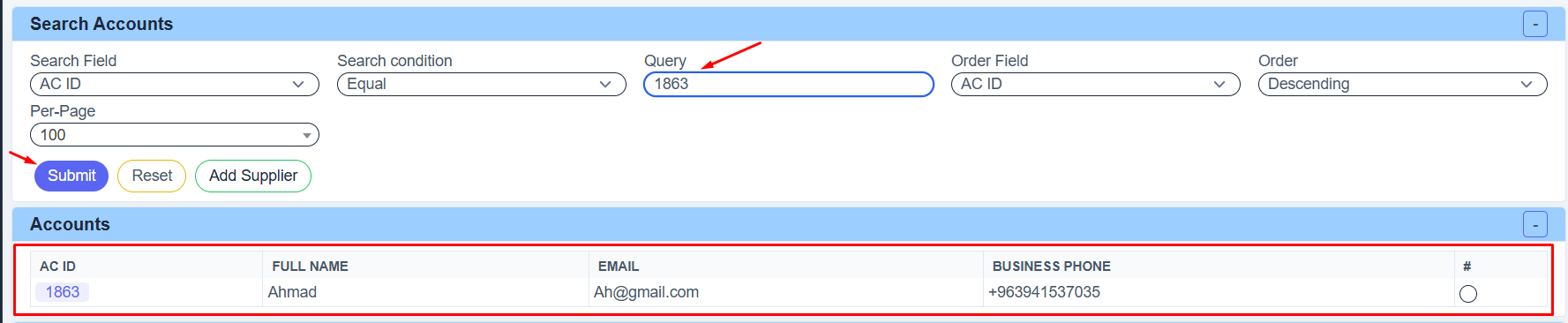
- Select the **Search Field** to choose the information you want to search for, such as **Account ID, Name, Email, or Tax Number**.
- Choose the **Search Method**:
- **Equal**: If you want the exact same value
- **Start With**: If the text starts with a specific letter or number
- **Contains**: If the text includes specific words or numbers
- **Not Contains**: If the text does not include specific words or numbers
- Enter the word or number you want to search for in the **Query** field.
- Select the **Order Field** if you want to sort the results, for example by **Account ID**.
- Choose the **Order Type**:
- **Ascending**: From smallest to largest
- **Descending**: From largest to smallest
- Select how many results you want to display on each page in the **Per-Page** field.
- Click **Submit** to show the **results**.
- Click **Reset** to clear all **filters**.
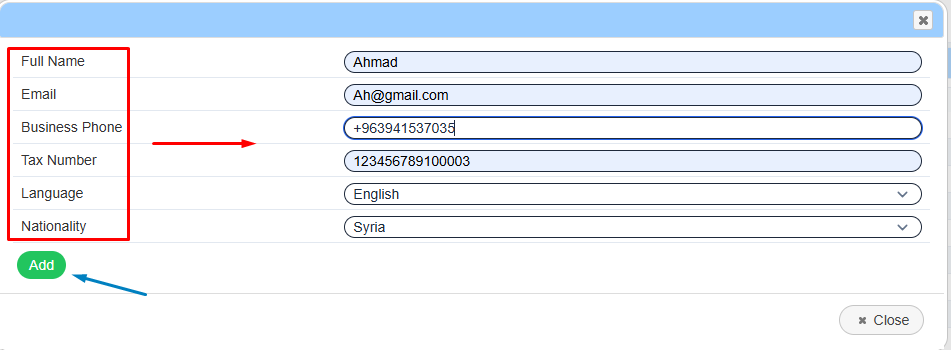
- Click **Add Supplier** to create a **new supplier** account.
[](https://kb.easifycloud.com/uploads/images/gallery/2026-04/QUYimage.png)
**Example Search Accounts**
[](https://kb.easifycloud.com/uploads/images/gallery/2026-04/screenshot-13.png)
**Example Add Supplier**
[](https://kb.easifycloud.com/uploads/images/gallery/2026-04/screenshot-8.png)
##### **Search Purchase Orders**
- Select the **Search Field** to choose what you want to search for, such as **Purchase Order ID, Reference ID, Notes, or Print Notes**.
- Choose the **Search Method** to decide how the system will search:
- **Equal**: Find the exact same value
- **Start With**: Find text that starts with specific letters or numbers
- **Contains**: Find text that includes specific words or numbers
- **Not Contains**: Find text that does not include specific words or numbers
- Enter the word, number, or text you want to search for in the **Query** field.
- Select the **Order Field** to choose how the results will be arranged, such as by **Purchase Order ID** or **Invoice Date**.
- Choose the **Order Type**:
- **Ascending**: From smallest to largest
- **Descending**: From largest to smallest
- Select how many results you want to display on each page in the **Per-Page** field.
- Choose the **Date Field** to decide which date the system will search by:
- **Invoice Date**: Search using the invoice date
- **Create Date**: Search using the created date
- **Update Date**: Search using the last updated date
- Choose the **Date Search Method**:
- **Between**: Search between two dates
- **After**: Search after a specific date
- **Before**: Search before a specific date
- Enter the required date or date range in the **Date** field.
- Click **Submit** to show the search results.
- Click **Reset** to clear all filters and start again.
[](https://kb.easifycloud.com/uploads/images/gallery/2026-04/screenshot-3.png)
**Example Search Purchase Orders**
[](https://kb.easifycloud.com/uploads/images/gallery/2026-04/screenshot-10.png)
##### **Add Purchase Orders Items**
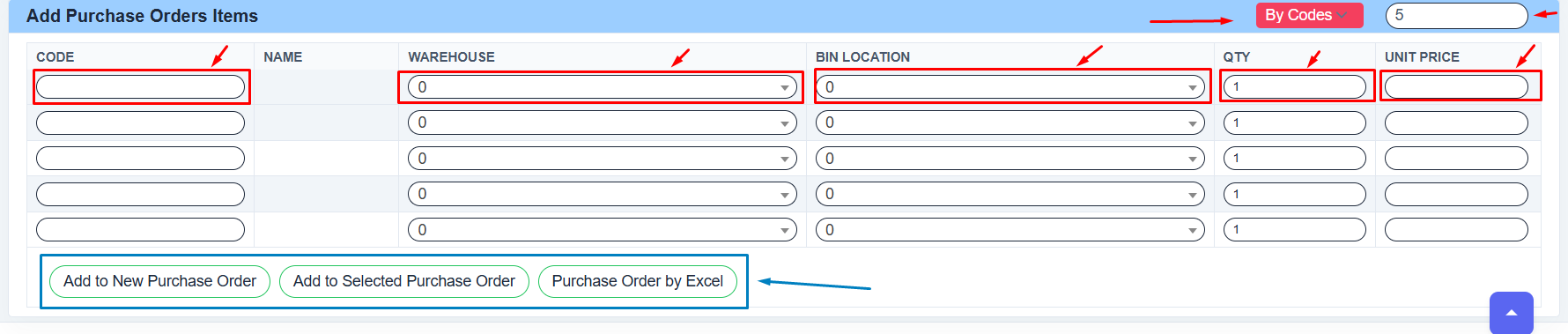
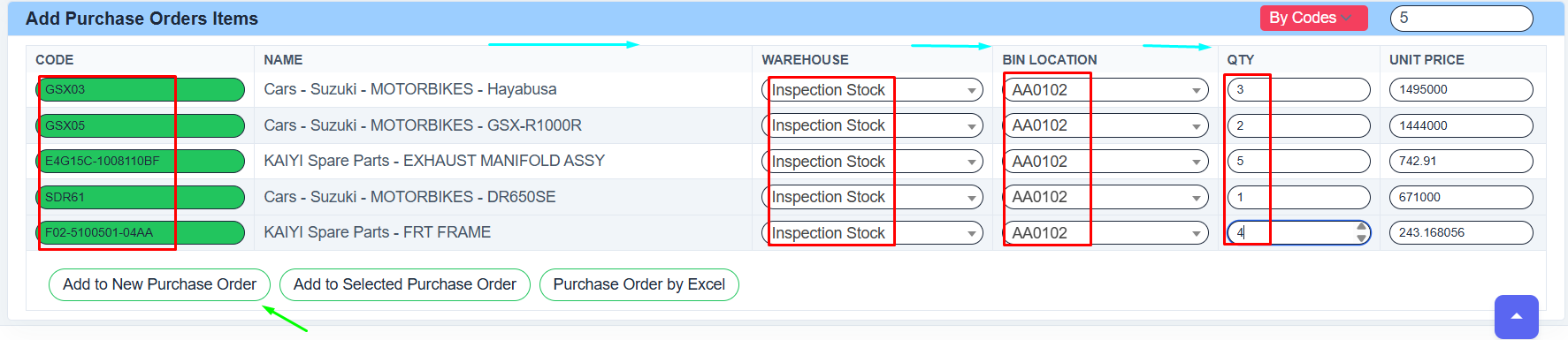
- Enter the **Item Code** in the **CODE** field for each product you want to add.
- The **NAME** field will display the item name automatically after entering the code.
- Select the **Warehouse** where the item will be stored.
- Select the **Bin Location** for the item inside the warehouse, if available.
- Enter the required quantity in the **QTY** field.
- Enter the item price in the **UNIT PRICE** field.
- Use the top-right option to choose the entry method, such as **By Codes**.
- Enter the number of rows you want to display for adding items.
- Click **Add to New Purchase Order** to create a new Purchase Order with these items.
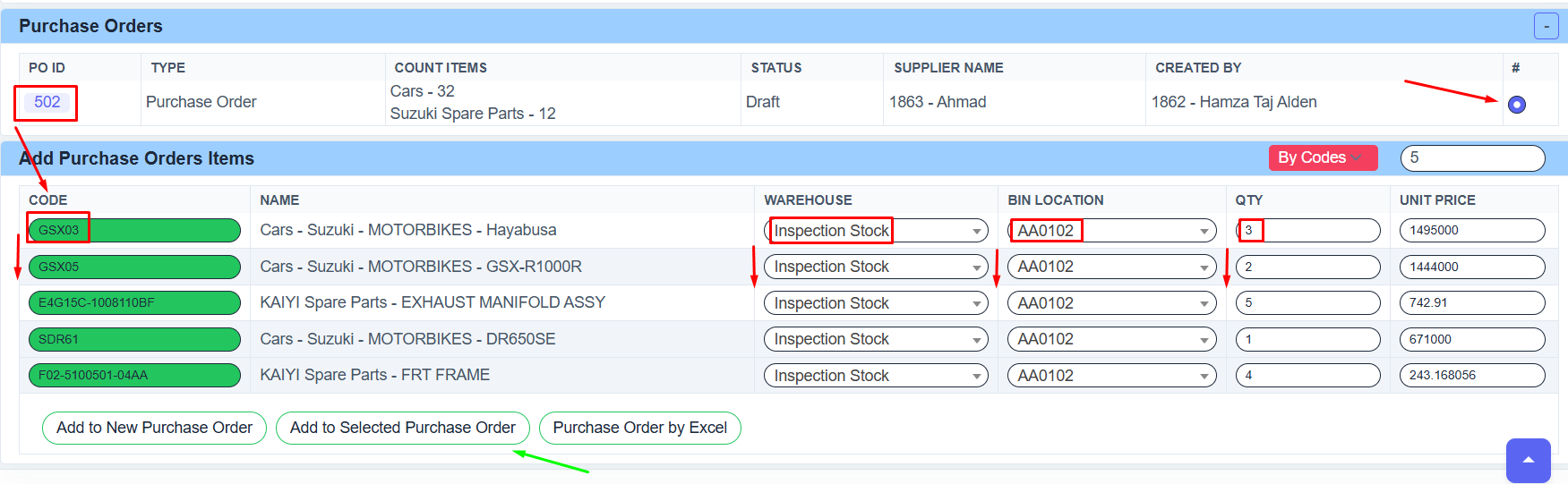
- Click **Add to Selected Purchase Order** to add the items to an existing Purchase Order.
- Click **Purchase Order by Excel** to import items using an Excel file
[](https://kb.easifycloud.com/uploads/images/gallery/2026-04/screenshot-5.png)
**Example Add New Purchase Orders**
[](https://kb.easifycloud.com/uploads/images/gallery/2026-04/screenshot-15.png)
**Example Add To Selected Purchase Orders**
[](https://kb.easifycloud.com/uploads/images/gallery/2026-04/screenshot-16.png)