# Create Quotations
##### Create Quotations has been updated to improve quotation management and provide better control over customer details, quotation items, quantities, prices, taxes, and discounts. It also makes it easier to track quotation status, manage sales offers, and maintain accurate and organized records for better follow-up and decision-making.
##### **Find Quotations**
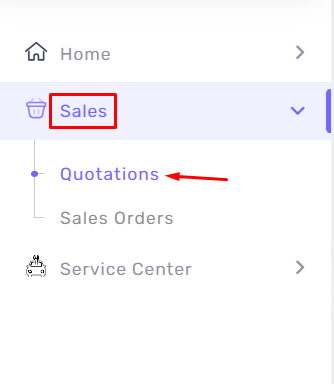
From the menu **Sales → Quotations,** you can search quotations, view quotation details, and **create a new quotation**
[](https://kb.easifycloud.com/uploads/images/gallery/2026-04/Petimage.png)
##### **Add New Quotation**
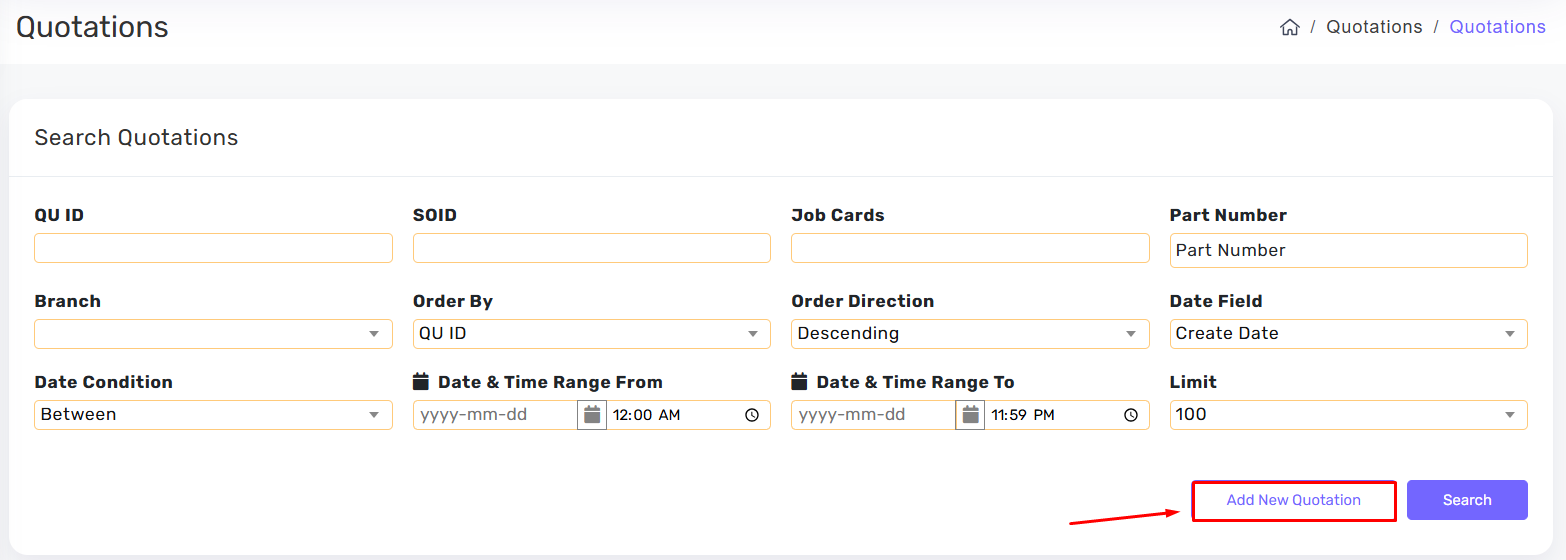
Click **Add New Quotation** to create a new quotation for a customer and enter the required quotation details.
[](https://kb.easifycloud.com/uploads/images/gallery/2026-04/X44image.png)
##### **Creating Quotation**
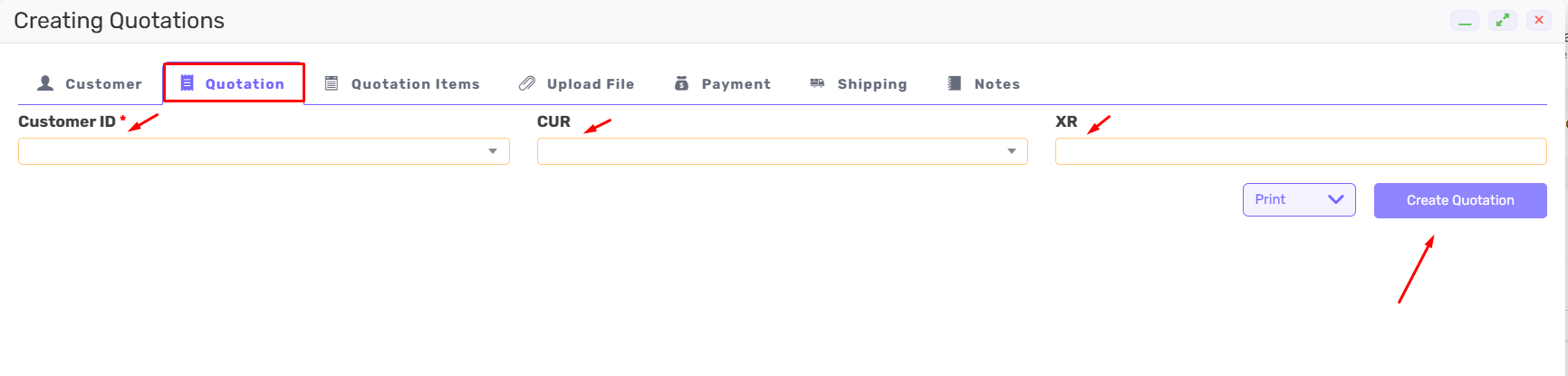
- Select **Customer ID** from the dropdown list to choose the customer you want to create the Sales Order for.
- Select **CUR** to choose the transaction currency, such as **USD, EUR, or SAR**.
- Enter **XR** (Exchange Rate) if the selected currency is different from the company’s main currency.
- Make sure all required fields marked with a red asterisk **(\*)** are completed.
- Click **Create Quotation** to save the order and continue to the next step.
[](https://kb.easifycloud.com/uploads/images/gallery/2026-04/c5Zimage.png)
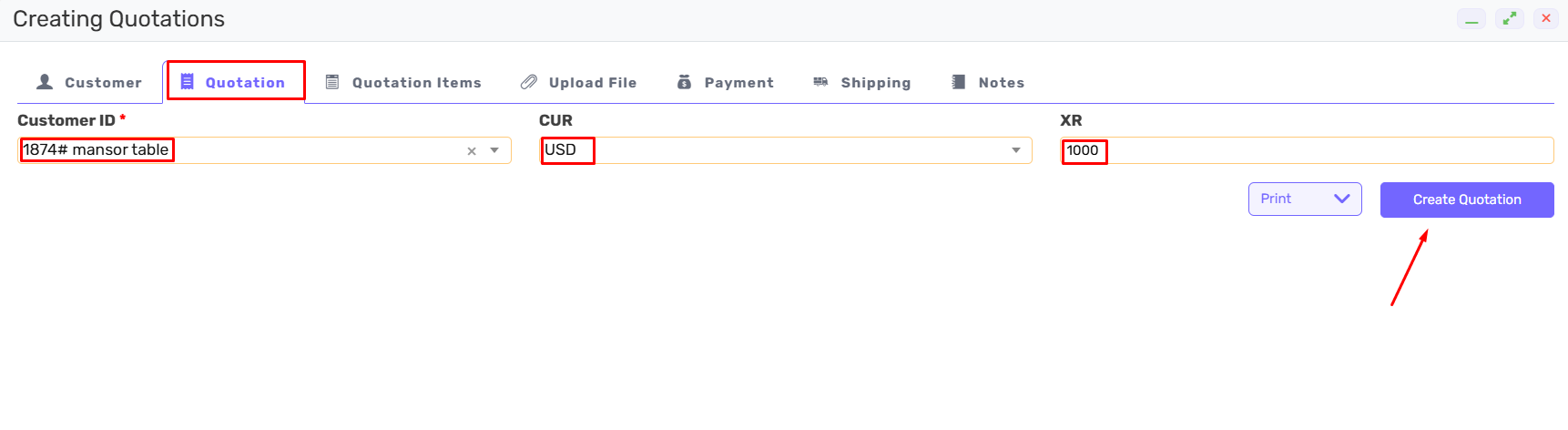
**Example Creating Sales Order**
[](https://kb.easifycloud.com/uploads/images/gallery/2026-04/7bNimage.png)
**Next Step :**
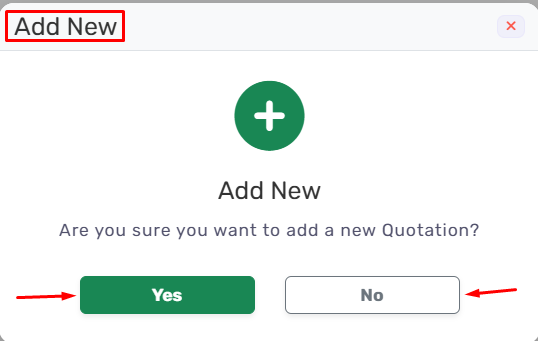
This is a confirmation message from the system.
It asks if you want to create a new Quotation.
Click **Yes** to continue.
Click **No** to cancel.
[](https://kb.easifycloud.com/uploads/images/gallery/2026-04/4msimage.png)
##### **Quotation**
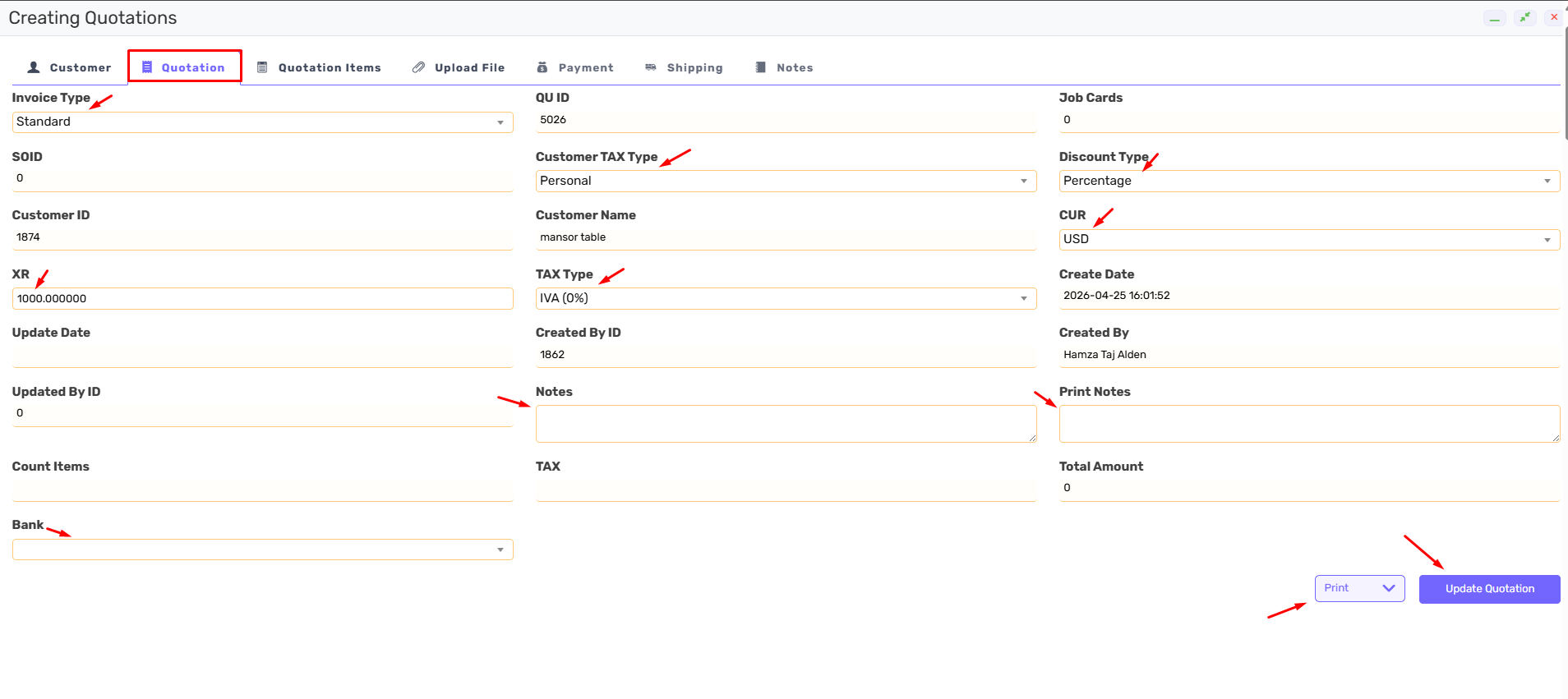
- Check **Order Details** to review the customer name, order number, and invoice type.
- Check **Financials** to review currency, exchange rate, discount, tax, and total amount.
- Check **Administration & Sales** to review salesman, branch, bank, and created by details.
- Check **Logistics & Notes** to review shipping terms and any notes.
- Check **Approved** to see if the order is approved or still pending.
- Click **Print** if you want to print or save a copy of the Sales Order.
- Update any required information if changes are needed.
- Click **Update Sales Order** to save all changes.
[](https://kb.easifycloud.com/uploads/images/gallery/2026-04/CDvimage.png)
##### **Quotation Items**
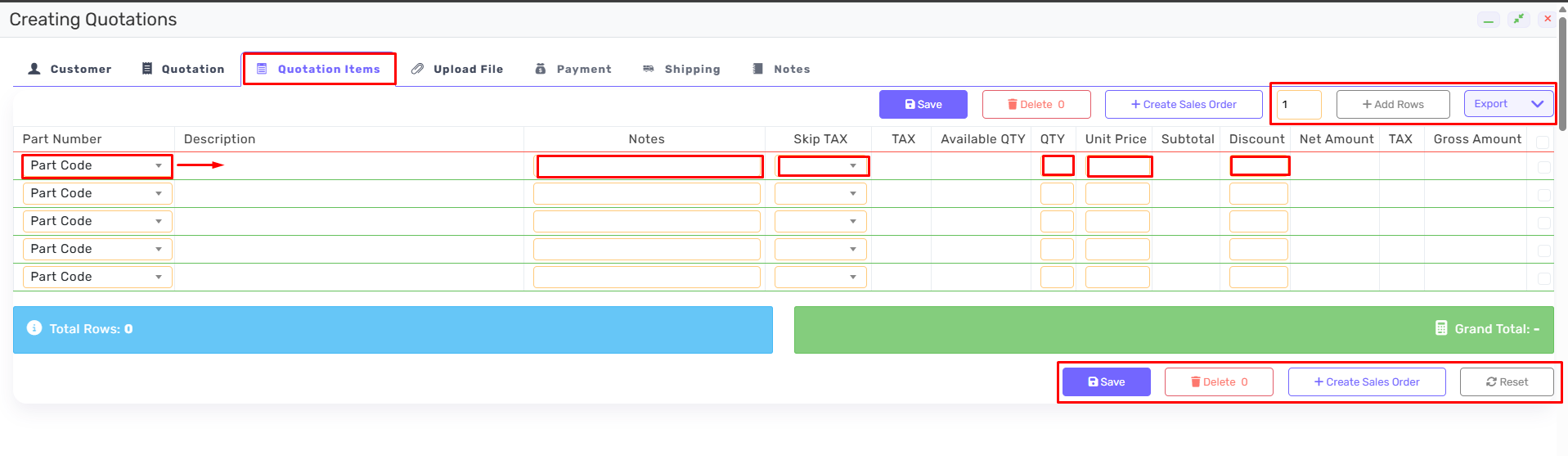
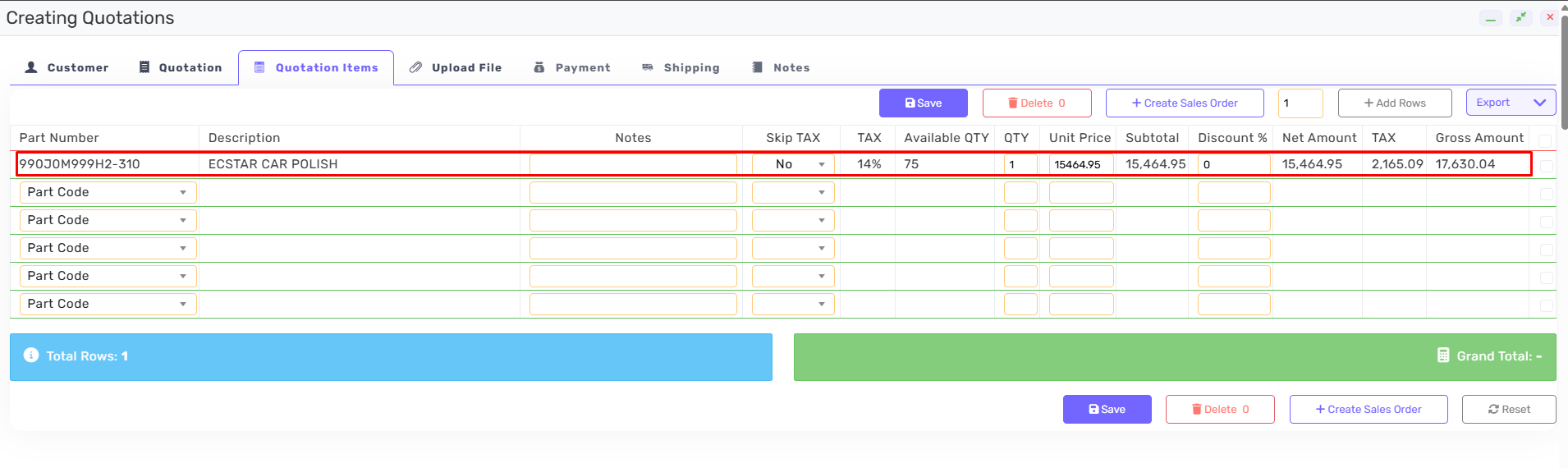
- Click **Part Code / Part Number** to choose the item you want to add. You can select it from the list or use the search icon to find the item.
- Enter **Note** to add any comments or additional details for the quotation.
- Enter **Skip TAX** if you want to exclude tax from this item.
- Enter **Discount** if you want to give a discount for that item.
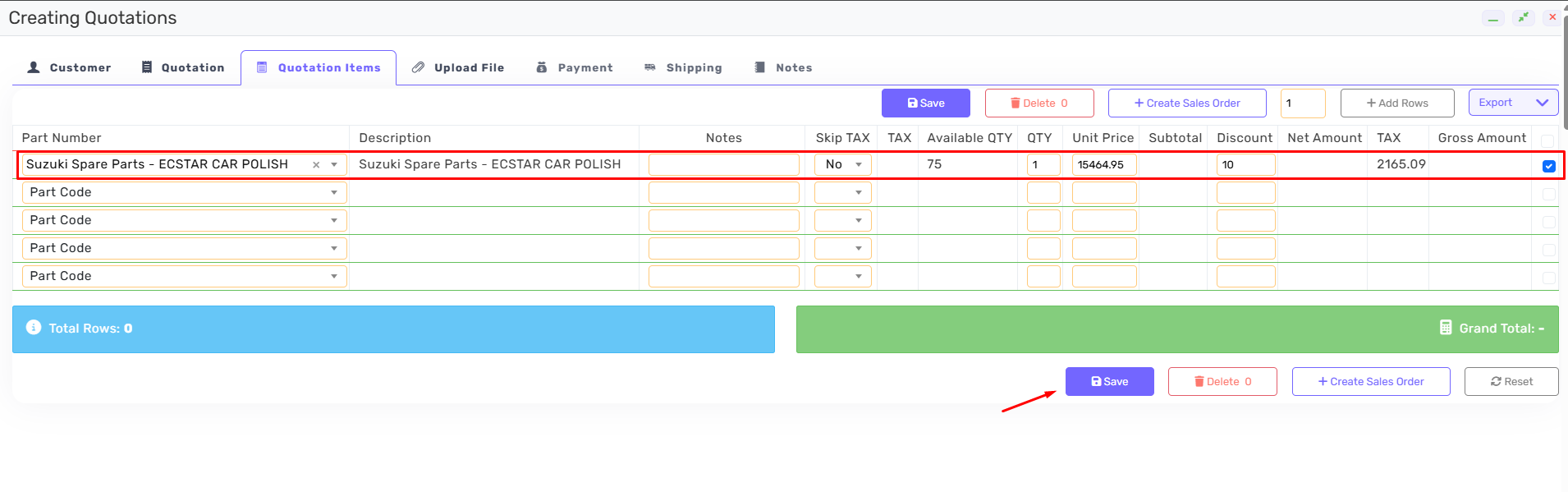
- The system will automatically calculate:
- **Available QTY** – Current stock quantity available
- **Unit Price** – Item price from the system
- **Subtotal** – Quantity × Unit Price
- **Net Amount** – Price after discount
- **Tax** – Tax amount for the item
- **Gross Amount** – Final total for that row
- **Grand Total** – Total amount for all items
- Click **+ Add Rows** if you want to add more items.
- Click **Save** to save the entered items.
- Click **Delete** if you want to remove an item row.
- Click **Create Sales Order** to create a new sales order for the customer and enter the required order details.
- **Export** means taking the data you see on the screen and saving it into an external file (usually an Excel or PDF file or Copy ).
[](https://kb.easifycloud.com/uploads/images/gallery/2026-04/screenshot-49.png)
**Example Quotation Items**
[](https://kb.easifycloud.com/uploads/images/gallery/2026-04/03pimage.png)
[](https://kb.easifycloud.com/uploads/images/gallery/2026-04/screenshot-50.png)
##### **Upload File**
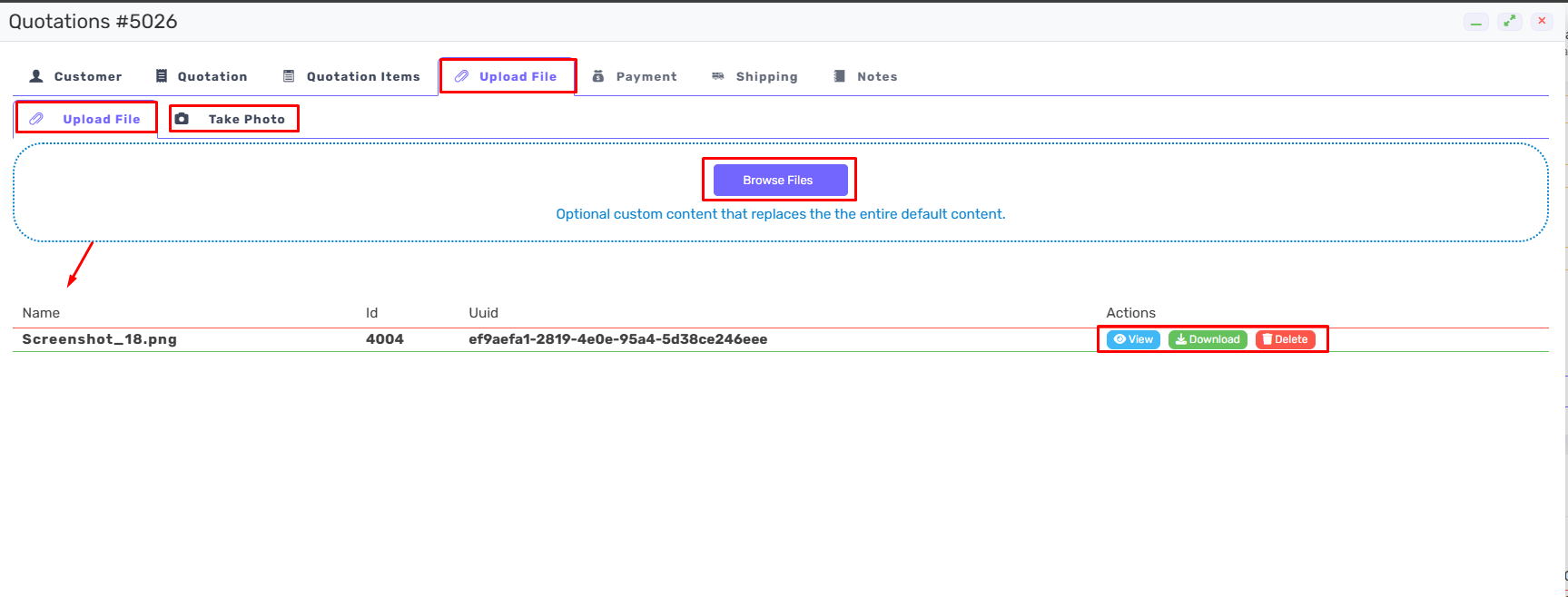
You have two options to add a new file
- You can click the “**Upload File**” tab
- use the “**Take Photo**” tab to capture an image using your device.
- Click the “**Browse Files**” button in the center of the screen. A window will open where you can select a document or image from your computer.
- Once the file is uploaded, it will appear in the list at the bottom.
- You will be able to see the file details such as:
**Name** (for example: steptwo.png), **ID** (the unique identification number), and **UUID** (the system-generated code for the file).
On the right side under Actions, you can manage the file using the **available buttons**:
- **View** to open and preview the file without downloading it.
- **Download** to save the file to your device.
- **Delete** to remove the file from the system.
[](https://kb.easifycloud.com/uploads/images/gallery/2026-04/screenshot-52.png)
#####
##### **Search Quotations**
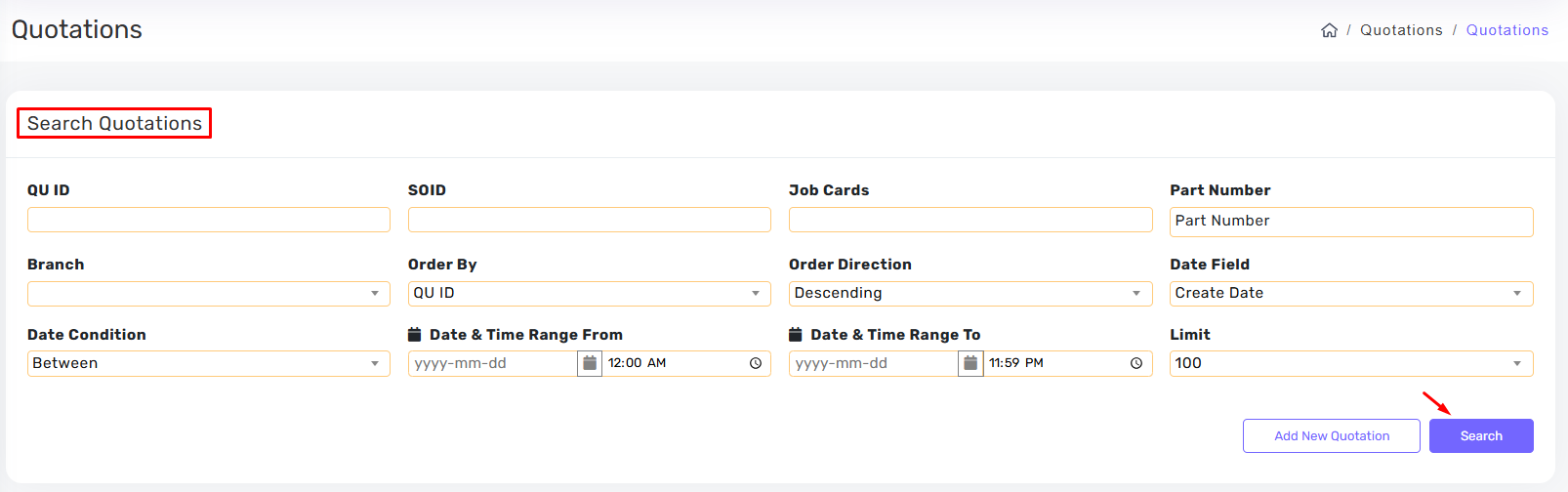
- Enter **QU ID** to search for a specific quotation. You can type the number directly or use the search icon to find it.
- Enter **SO ID** to search for a specific sales order. You can type the number directly or use the search icon to find it.
- Enter **Job Cards** to search for orders linked to a job card. You can type the number directly or use the search icon to find it.
- Enter **Part Number** to search for orders containing a specific item. You can type the item code directly or use the search icon to find it.
- Choose **Branch** to filter results by branch location
- Select **Order By** to choose how the results will be sorted.
- Select **Order Direction** to set sorting order (Ascending or Descending).
- Choose **Date Field** to select which date type to search by.
Enter Date Condition to set the date filter (Equal, Between, Before, After).
- Enter **Date & Time Range From** and **Date & Time Range To** to search within a specific period.
- Enter **Limit** to define how many results you want to display.
- Click **Search** to show the matching results.
[](https://kb.easifycloud.com/uploads/images/gallery/2026-04/n9Jimage.png)
##### **Search results**
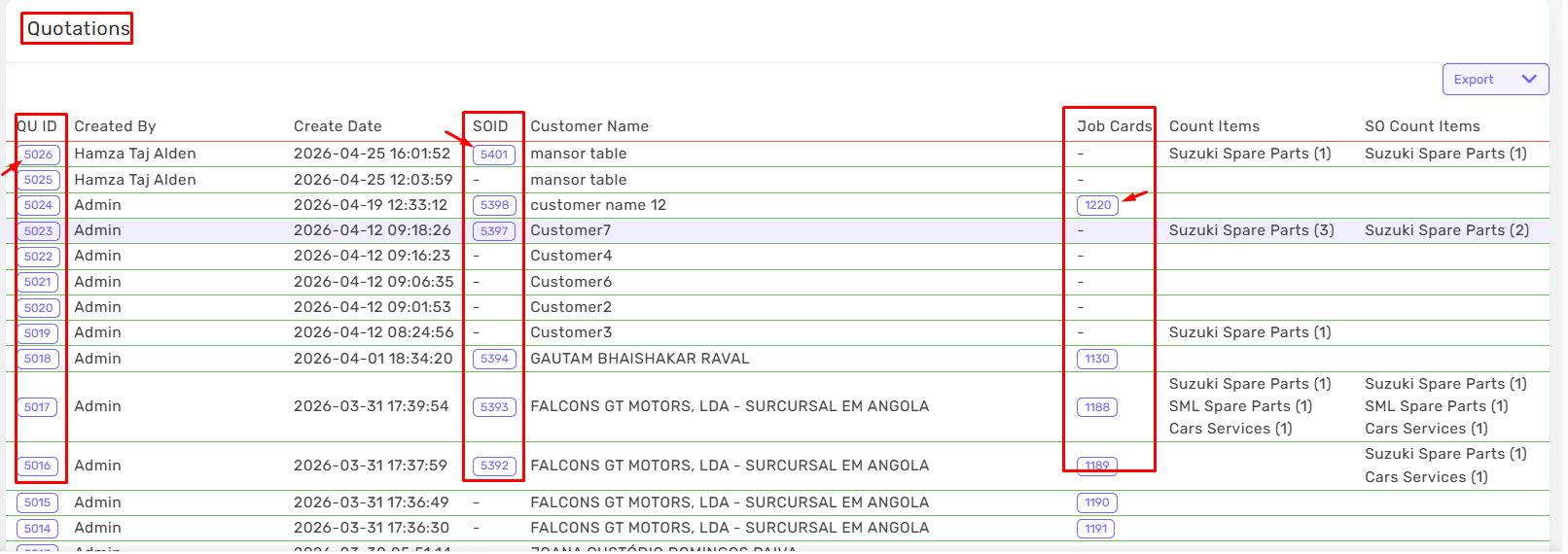
- Click **QU ID** to open or move to the quotation details.
- Click **SO ID** to open or move to the sales order details.
- Click **Job Cards** to open or move to the job card details.
[](https://kb.easifycloud.com/uploads/images/gallery/2026-04/iV5image.png)