# Service Center
# Create Job Card
# Updates
# Job Card Update to Quotation
##### The job card have been updated from using Job Cards Items to Quotations Items to have a better control over the amouts/Tax/Discounts ...etc.
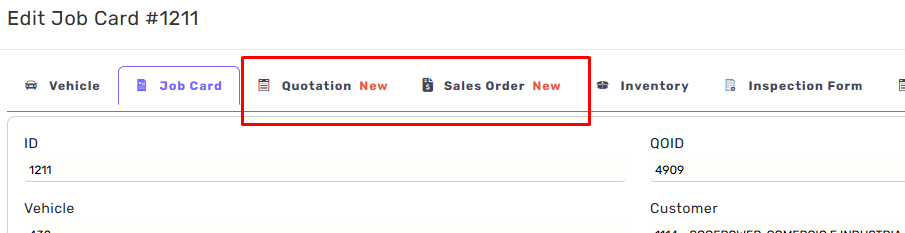
**Quotation Tab and Sales Order Tab have been added to the Job Card Dialog**
Labeled with New
[](https://kb.easifycloud.com/uploads/images/gallery/2026-03/yAEimage.png)
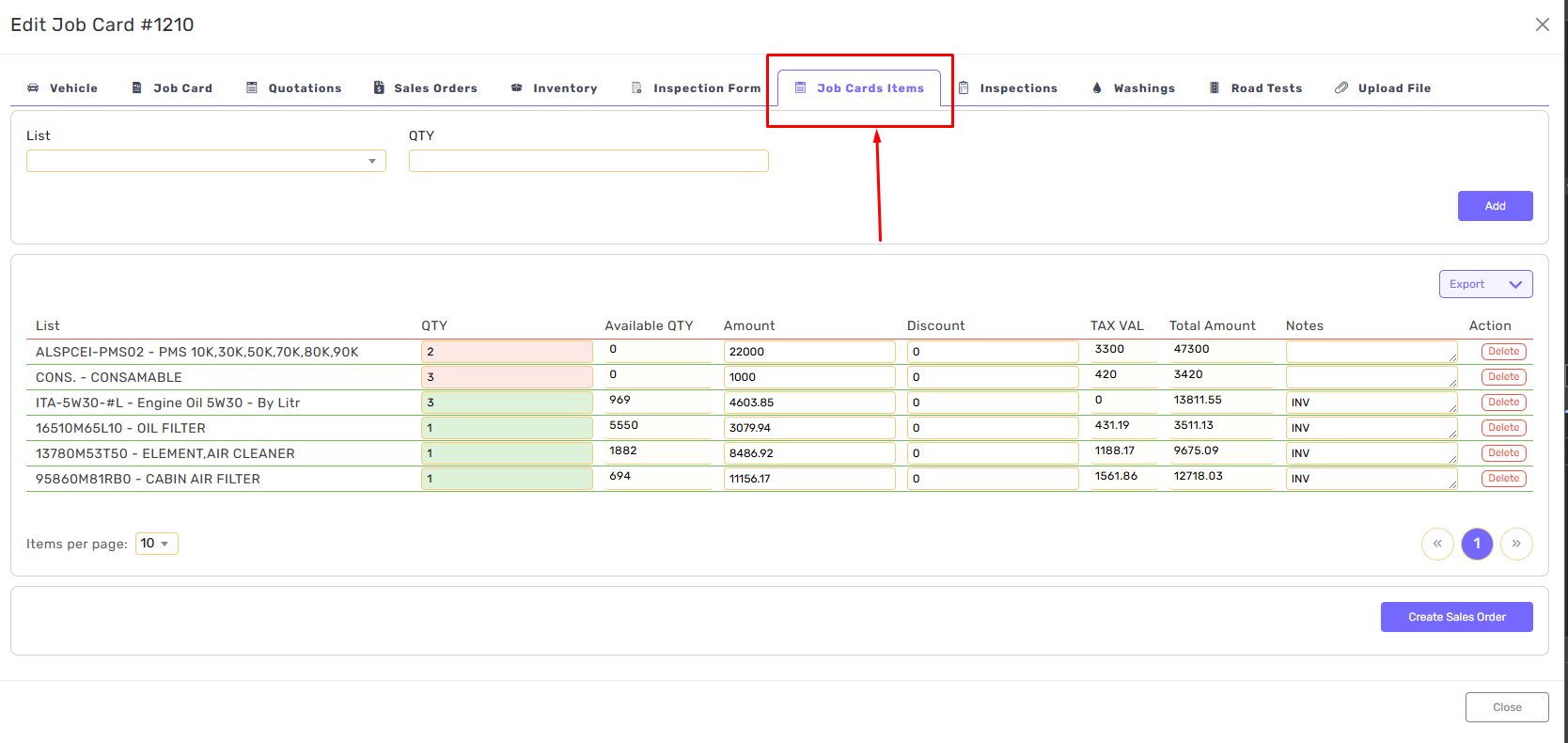
**No more adding items/services within the Job Items.**
Read Only TAB
[](https://kb.easifycloud.com/uploads/images/gallery/2026-03/image.png)
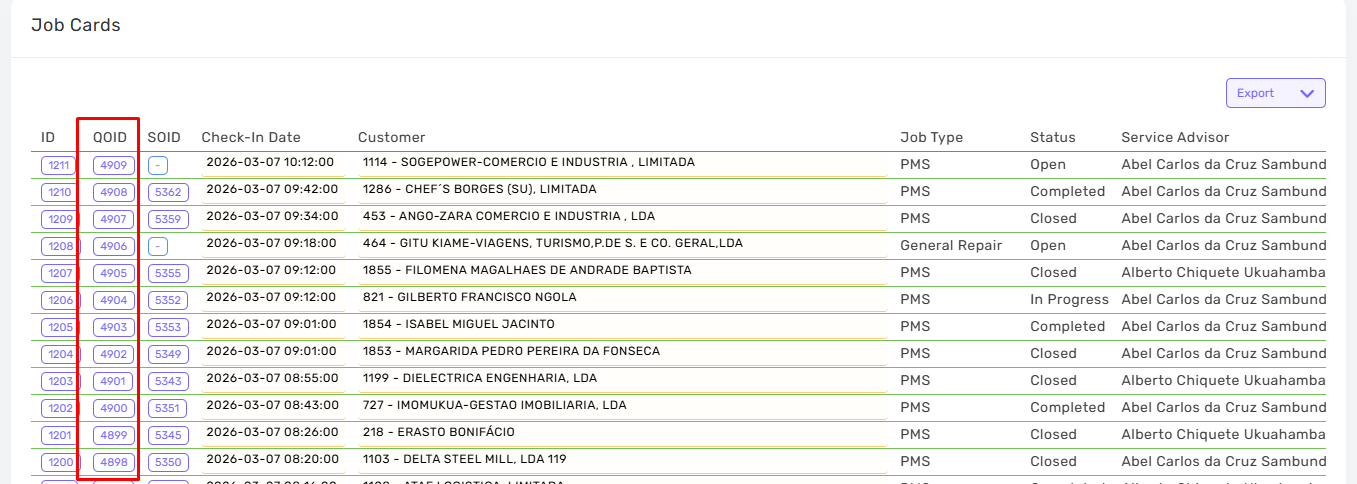
**All Job Cards Items have been migrated to Quotations/Quotations Items.**
All existing job cards have a linked Quotation with items
[](https://kb.easifycloud.com/uploads/images/gallery/2026-03/VYEimage.png)
**Step one in adding Items is createing Quotation for this Job Cars.**
Click on Quotations then Create Quotation.
[](https://kb.easifycloud.com/uploads/images/gallery/2026-03/CcTimage.png)
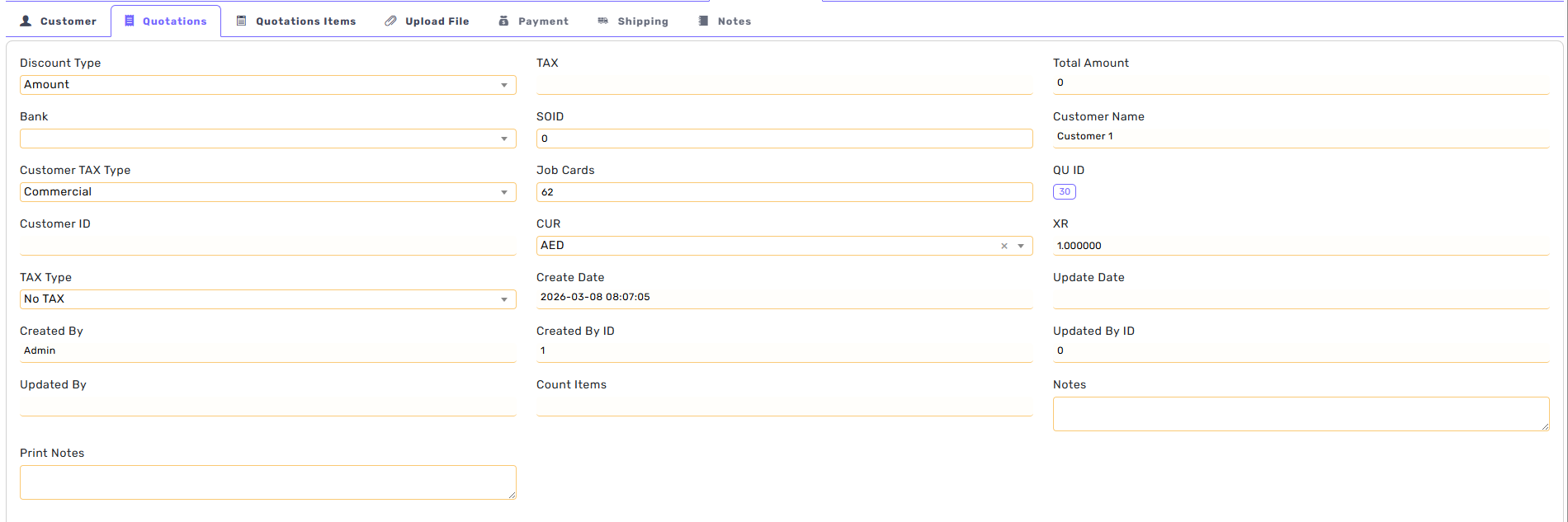
**A new quotation will be added and linked to Job Card/Customer**
This Quotation can be opened from the Old/New Systems
[](https://kb.easifycloud.com/uploads/images/gallery/2026-03/kX9image.png)
**To add Items, click on Quotations Items.**
Search for the part-number and add the quantity.
[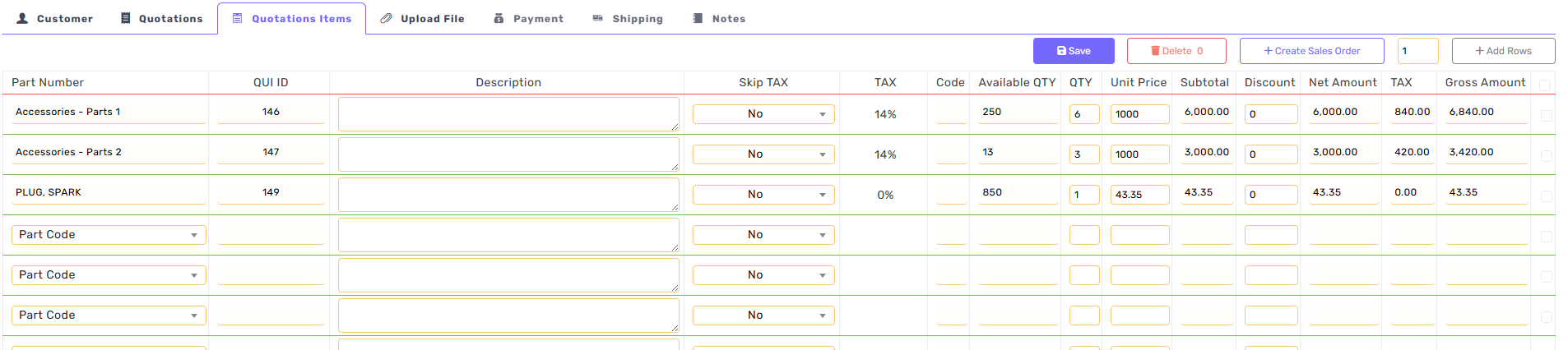](https://kb.easifycloud.com/uploads/images/gallery/2026-03/FYximage.png)
**A Quotation can be converted to Sales Order.**
From the Qutations Items Tab, click on Create Sales Order
[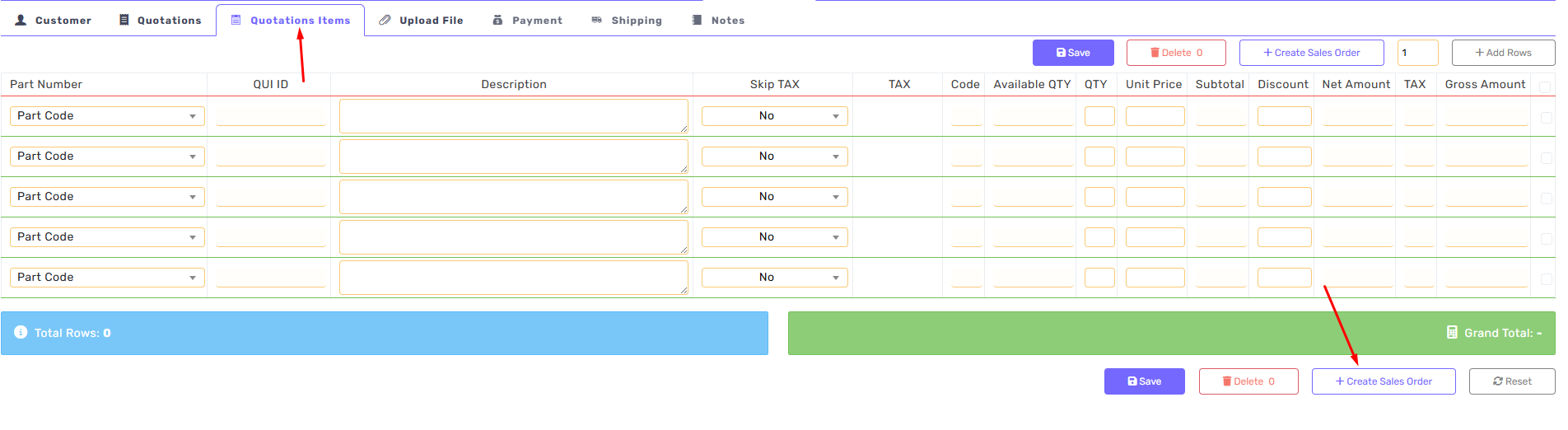](https://kb.easifycloud.com/uploads/images/gallery/2026-03/A4Nimage.png)
**Or Sales Order can be created directly**
[](https://kb.easifycloud.com/uploads/images/gallery/2026-03/bX4image.png)
**Add Good to Sales Order**
Find the part number
[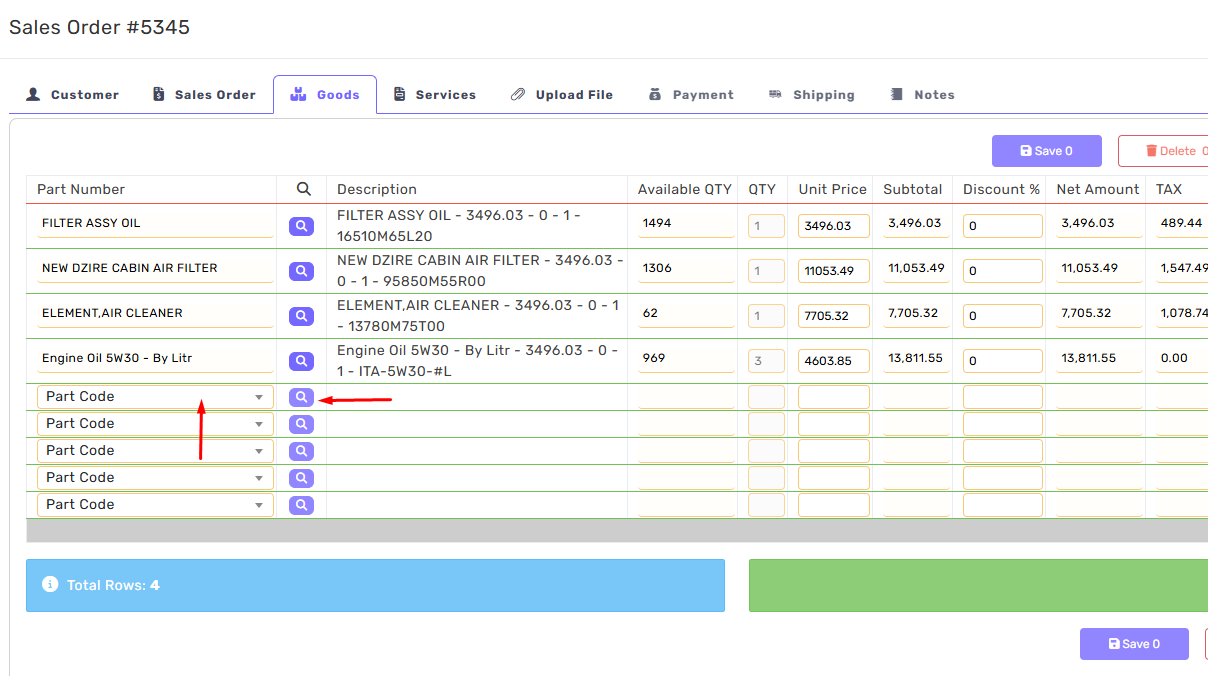](https://kb.easifycloud.com/uploads/images/gallery/2026-03/MRYimage.png)
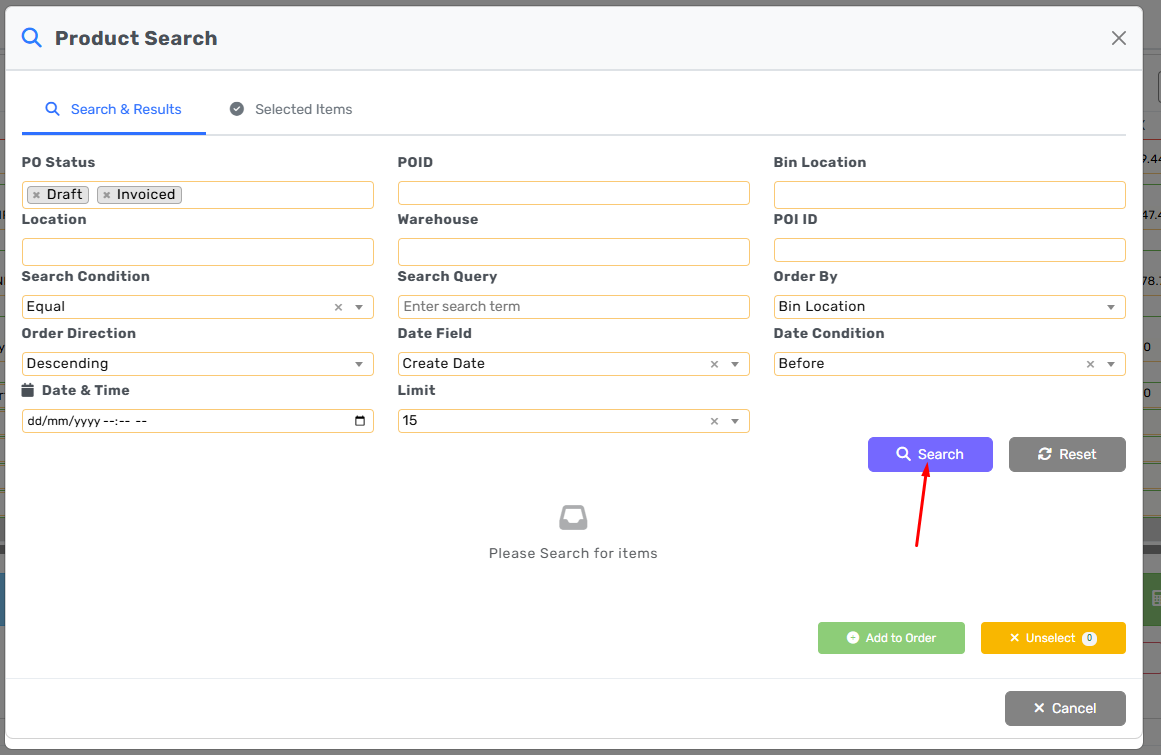
Click on the search icon
[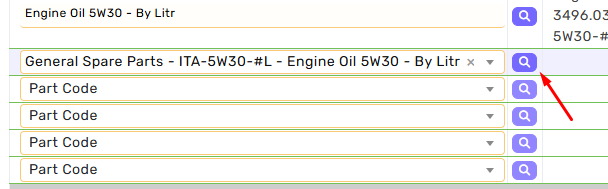](https://kb.easifycloud.com/uploads/images/gallery/2026-03/xfgimage.png)
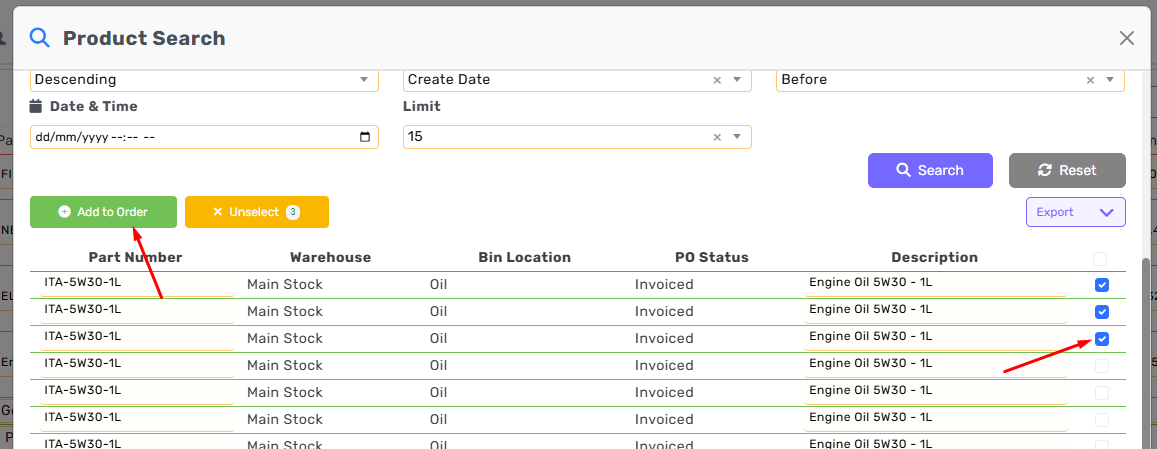
Find the items
[](https://kb.easifycloud.com/uploads/images/gallery/2026-03/dEdimage.png)
Select Items then click add to order
[](https://kb.easifycloud.com/uploads/images/gallery/2026-03/K9Gimage.png)