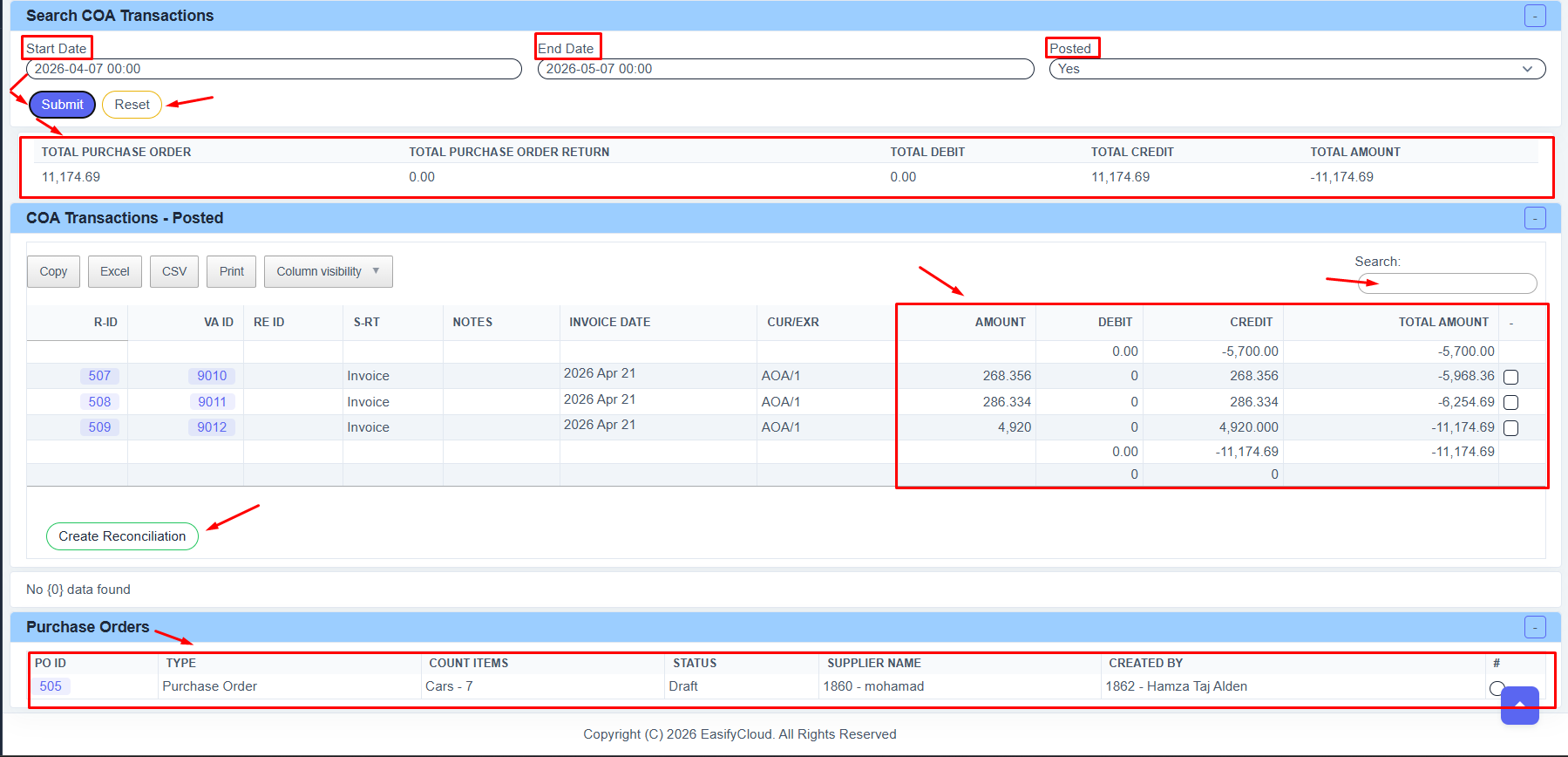
Suppliers
Suppliers has been updated to improve supplier management and provide better control over supplier records, contact details, balances, transactions, and related purchasing information, while making it easier to track supplier activities and maintain accurate records.
Find Suppliers
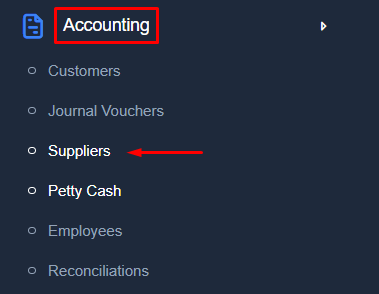
Search Supplier Accounts
- Select the Search Field to choose the information you want to search for, such as Account ID, Name, Email, or Tax Number.
- Choose the Search Method:
- Equal: If you want the exact same value
- Start With: If the text starts with a specific letter or number
- Contains: If the text includes specific words or numbers
- Not Contains: If the text does not include specific words or numbers
- Enter the word or number you want to search for in the Query field.
- Select the Order Field if you want to sort the results, for example by Account ID.
- Choose the Order Type:
- Ascending: From smallest to largest
- Descending: From largest to smallest
- Select how many results you want to display on each page in the Per-Page field.
- Click Submit to show the results.
- Click Reset to clear all filters.
Accounts List
● AC ID: Shows the supplier account ID.
● Full Name: Displays the supplier name.
● Create Date: Shows when the supplier account was created.
● Select Option: Use the radio button on the right side to choose a supplier account.
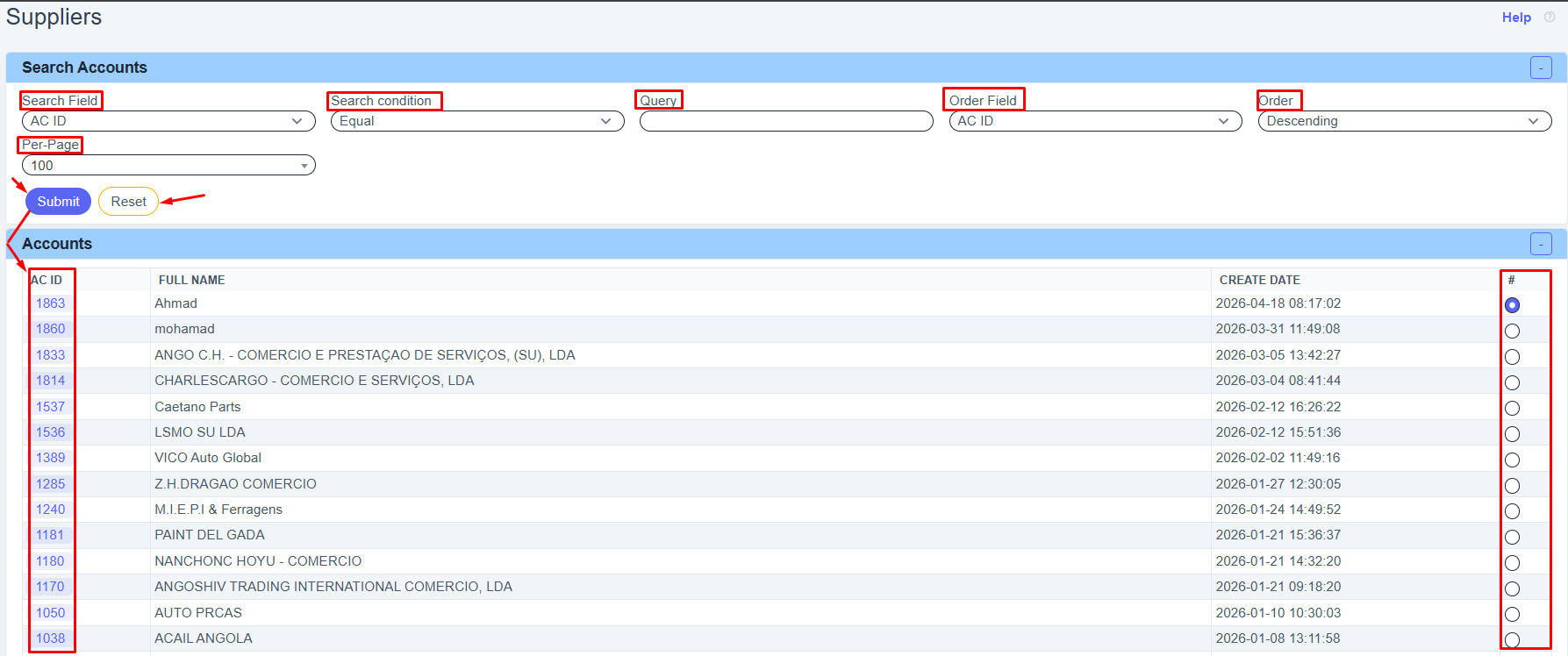
Suppliers Transactions
● Type: Select the transaction type such as payment or another transaction.
● Debit: Choose the debit account.
● Credit: Choose the credit account.
● Amount: Enter the required amount.
● CUR: Select the currency.
● EXR: Enter the exchange rate if needed.
● Invoice Date: Select the transaction date.
● Posted: Choose Yes if you want to post the transaction.
● Payment Type: Select the payment method such as Cash or Bank.
● Notes: Add internal notes if needed.
● Print Notes: Add notes that will appear when printing.
● Add: Click to save and add the transaction.
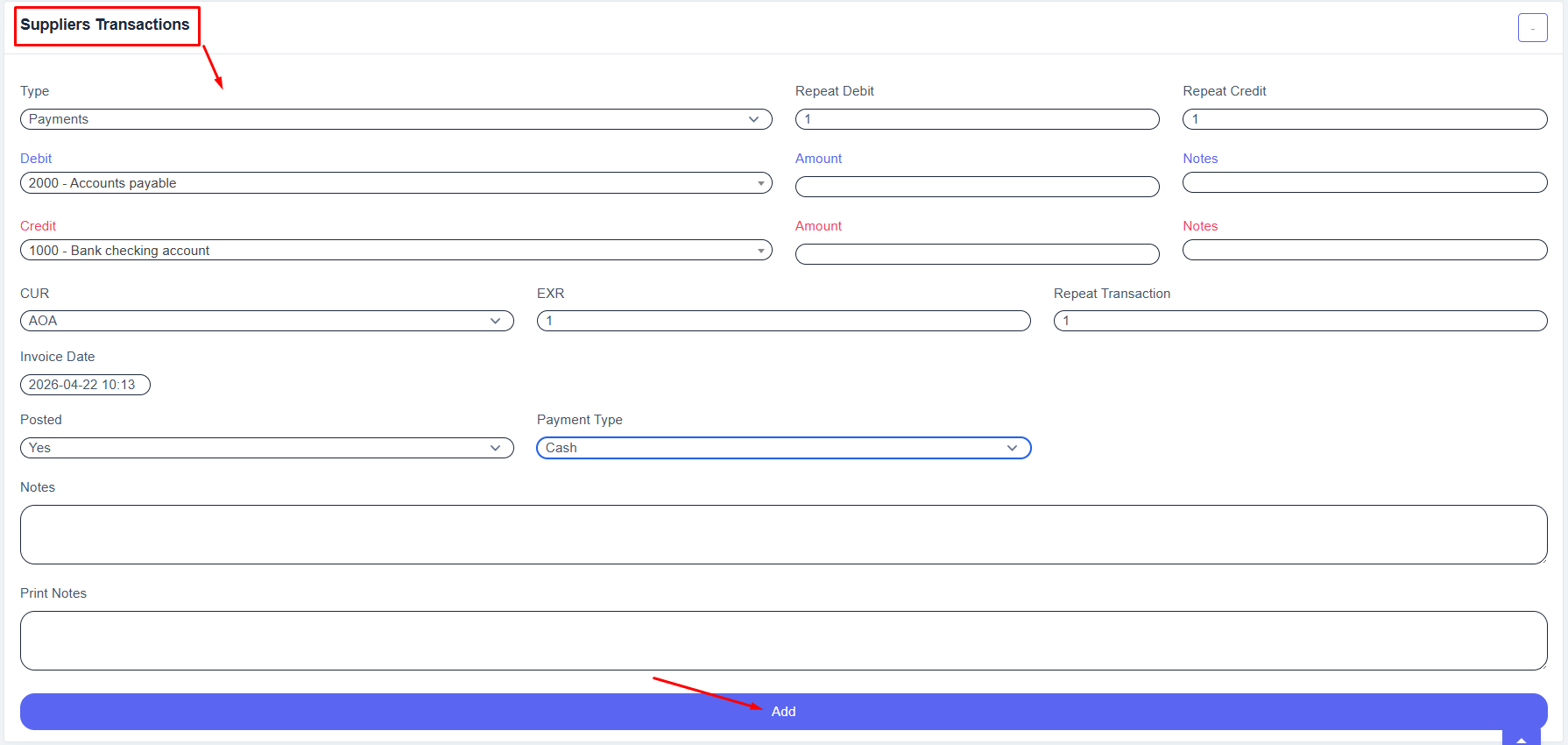
Search COA Transactions
● Start Date: Choose the starting date for the transactions.
● End Date: Choose the ending date for the transactions.
● Posted: Select posted transactions only, or choose another option.
● Submit: Click to display the results.
● Reset: Click to clear filters and start again.
Summary Section
● Shows the total Purchase Orders.
● Shows the total Purchase Order Returns.
● Shows total Debit, total Credit, and final Balance Amount.
COA Transactions - Posted
● Displays all posted accounting transactions.
● You can use the search box to find specific records quickly.
● Shows details such as invoice date, currency, amount, debit, credit, and total balance.
● Use the export buttons (Excel, CSV, Print) if needed.
● Create Reconciliation: Click to match and reconcile transactions.
Purchase Orders