Employees
The employees module has been updated from using Employee Items to Employee Details to provide better control over salaries, allowances, deductions, etc
Find Employees
Search Employees Accounts
- Select the Search Field to choose the information you want to search for, such as Account ID, Name, Email, or Tax Number.
- Choose the Search Method:
- Equal: If you want the exact same value
- Start With: If the text starts with a specific letter or number
- Contains: If the text includes specific words or numbers
- Not Contains: If the text does not include specific words or numbers
- Enter the word or number you want to search for in the Query field.
- Select the Disabled option to filter records by their active or inactive status
- Select GID to search or filter records based on the associated GID value
- Select the Order Field if you want to sort the results, for example by Account ID.
- Choose the Order Type:
- Ascending: From smallest to largest
- Descending: From largest to smallest
- Select how many results you want to display on each page in the Per-Page field.
- Select the Date Field to specify which date attribute will be used when filtering the search results
- Select the Search Condition to define how the selected date will be compared with the chosen Date Field
- Select the Date to filter records based on the chosen Date Field and Search Condition
- Click Submit to show the results.
- Click Reset to clear all filters.
- Click Add to Add Employee

ADD EMPLOYEES
-
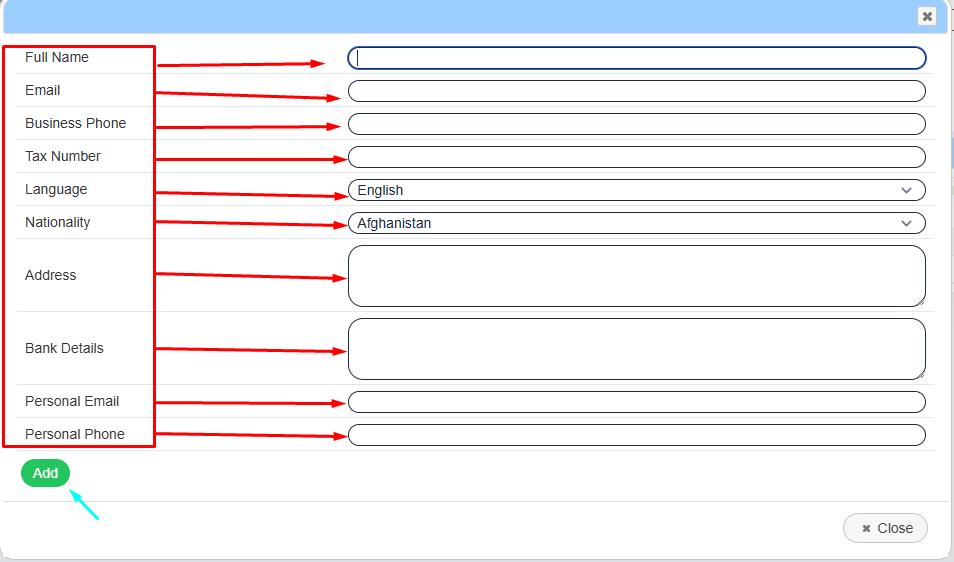
Enter the employee's Full Name in the Full Name field.
-
Enter the employee's Email Address in the Email field.
-
Enter the employee's Business Phone Number in the Business Phone field.
-
Enter the employee's Tax Number in the Tax Number field.
-
Select the employee's preferred language from the Language dropdown list.
-
Select the employee's nationality from the Nationality dropdown list.
-
Enter the employee's address in the Address field.
-
Enter the employee's banking information in the Bank Details field.
-
Enter the employee's personal email address in the Personal Email field.
-
Enter the employee's personal phone number in the Personal Phone field.
-
Click Add to create and save the employee record.
-
Click Close to exit the window without adding a new employee.
EDIT EMPLOYEES
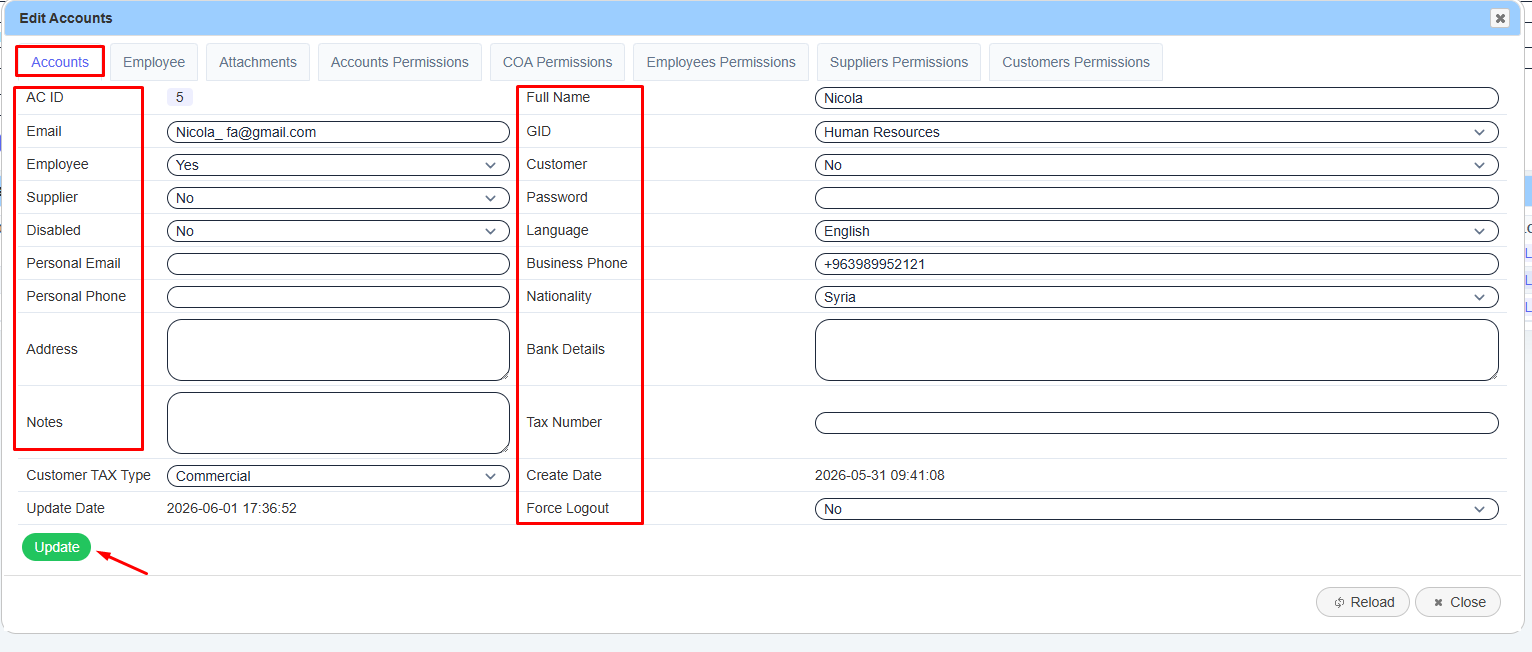
- Click Edit to update the employee's information

Accounts
- Update the employee's Email Address in the Email field if any changes are required
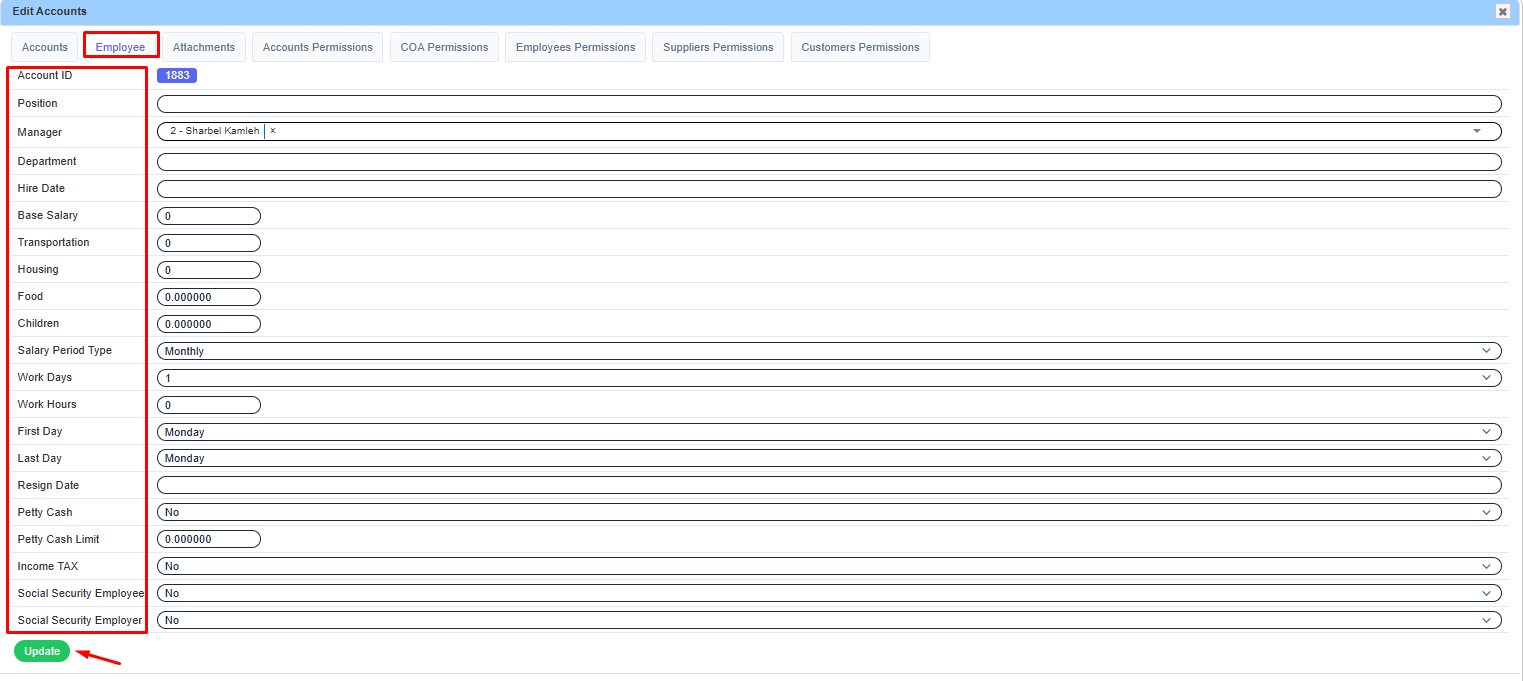
Employee
- Enter the employee's Position in the Position field.
- Enter the employee's Manager in the Manager field.
- Enter the employee's Department in the Department field.
- Enter the employee's Hire Date in the Hire Date field.
- Enter the employee's Base Salary in the Base Salary field.
- Enter the employee's Transportation Allowance in the Transportation field.
- Enter the employee's Housing Allowance in the Housing field.
- Enter the employee's Food Allowance in the Food field.
- Enter the number of Children in the Children field.
- Select the employee's Salary Period Type from the Salary Period Type dropdown list.
- Enter the employee's Work Days in the Work Days field.
- Enter the employee's Work Hours in the Work Hours field.
- Enter the employee's First Day in the First Day field.
- Enter the employee's Last Day in the Last Day field.
- Enter the employee's Resign Date in the Resign Date field (if applicable).
- Enter the employee's Petty Cash amount in the Petty Cash field.
- Enter the employee's Petty Cash Limit in the Petty Cash Limit field.
- Enter the employee's Income Tax amount in the Income TAX field.
- Enter the employee's Social Security (Employee Share) in the Social Security Employee field.
- Enter the employee's Social Security (Employer Share) in the Social Security Employer field.
Attachments
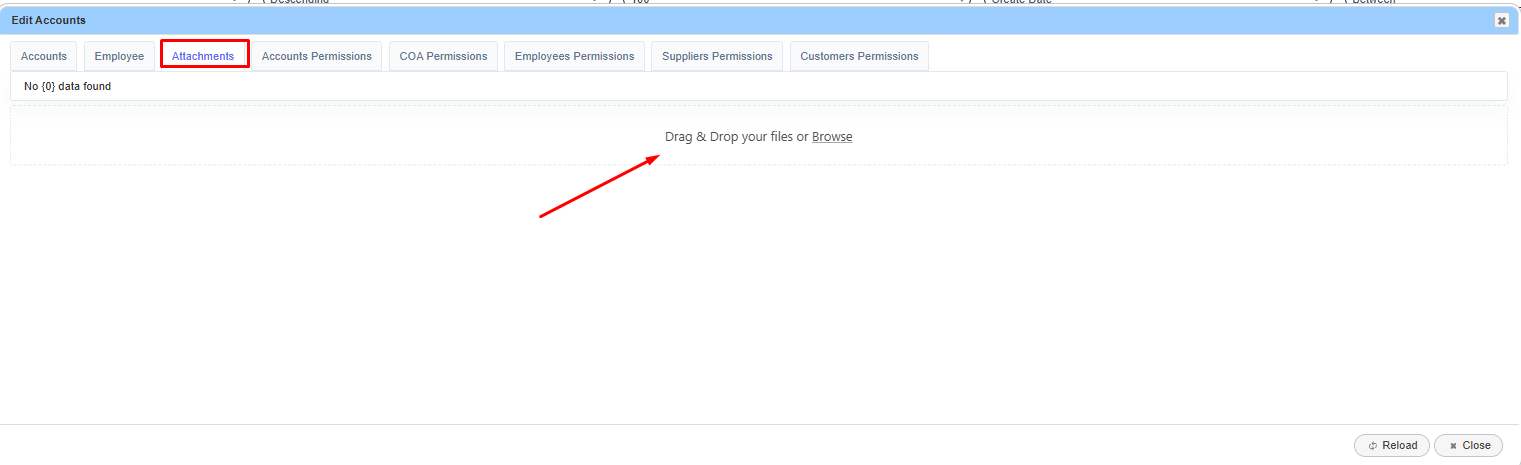
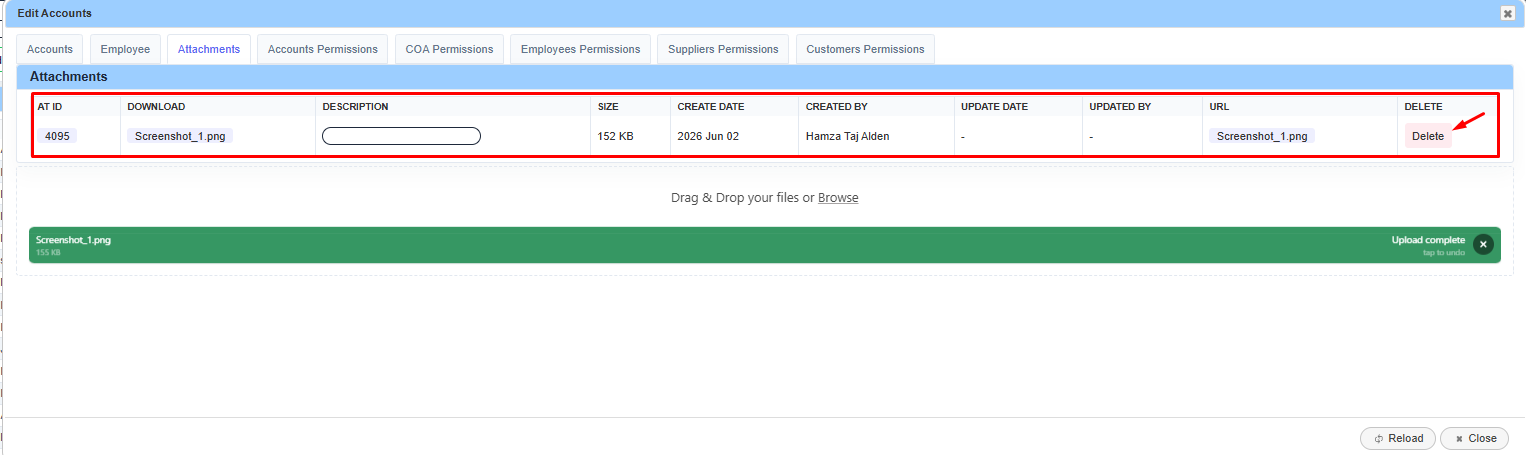
- Click Add Attachments to upload and attach supporting documents related to the employee record.
- Click Delete to remove the selected attachment or record permanently from the system.