
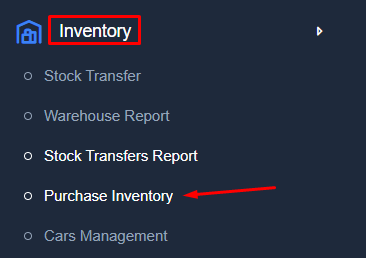
Purchase Inventory
Purchase Inventory has been updated to improve inventory purchasing management and provide better control over quantities, costs, taxes, discounts, as well as to facilitate tracking stock purchases and related details.
Find Purchase Inventory
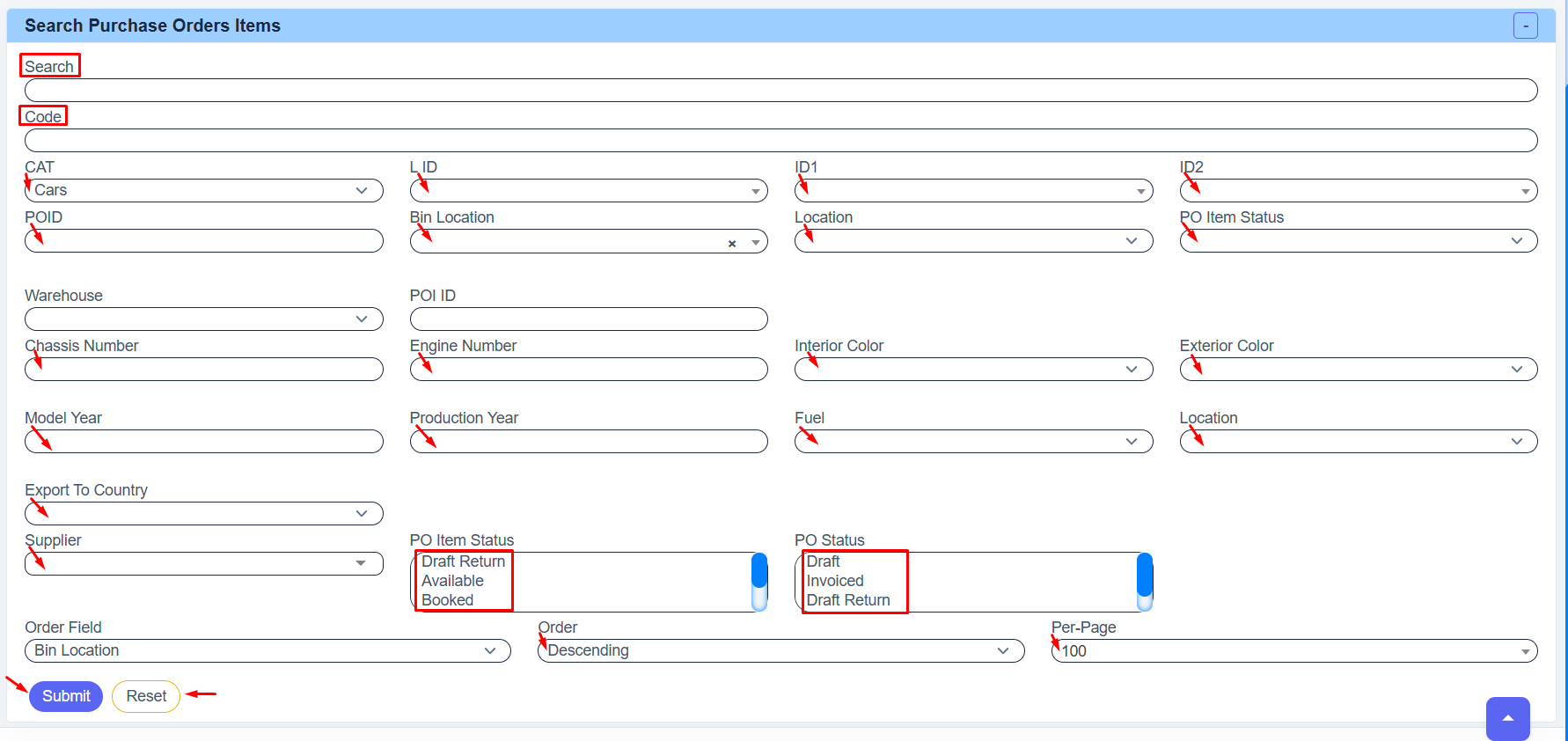
Search Purchase Orders Items
● Use the Search field to type any word related to the item you are looking for.
● Enter the Code if you already know the item code.
● Choose Category to select the category (such as Cars or any other category).
● Choose List ID to select the item name or list.
● Use ID1 and ID2 to narrow your search with extra options.
● Enter Purchase Order ID to search by Purchase Order number.
● Choose Bin Location to search by shelf or storage place.
● Choose Location to search by item location.
● Choose Purchase Order Item Status (Available, Booked, Sold, Draft Return, Canceled).
● Choose Warehouse to search inside a specific warehouse.
● Enter Purchase Order ID to search by item record number.
● Enter Chassis Number or Engine Number when searching for a vehicle.
● Choose Interior Color or Exterior Color if needed.
● Enter Model Year or Production Year if required.
● Choose Fuel Type if needed.
● Choose Export To Country to filter by destination country.
● Choose Supplier to search items from a specific supplier.
● Choose Purchase Order Status (Draft, Invoiced, Draft Return, etc.).
● Choose Order Field to decide how results are sorted.
● Choose Order:
- Ascending: From smallest to largest
- Descending: From largest to smallest
● Choose how many results to show per page.
● Click Submit to display the results.
● Click Reset to clear everything and start again.
Example Search Purchase Orders
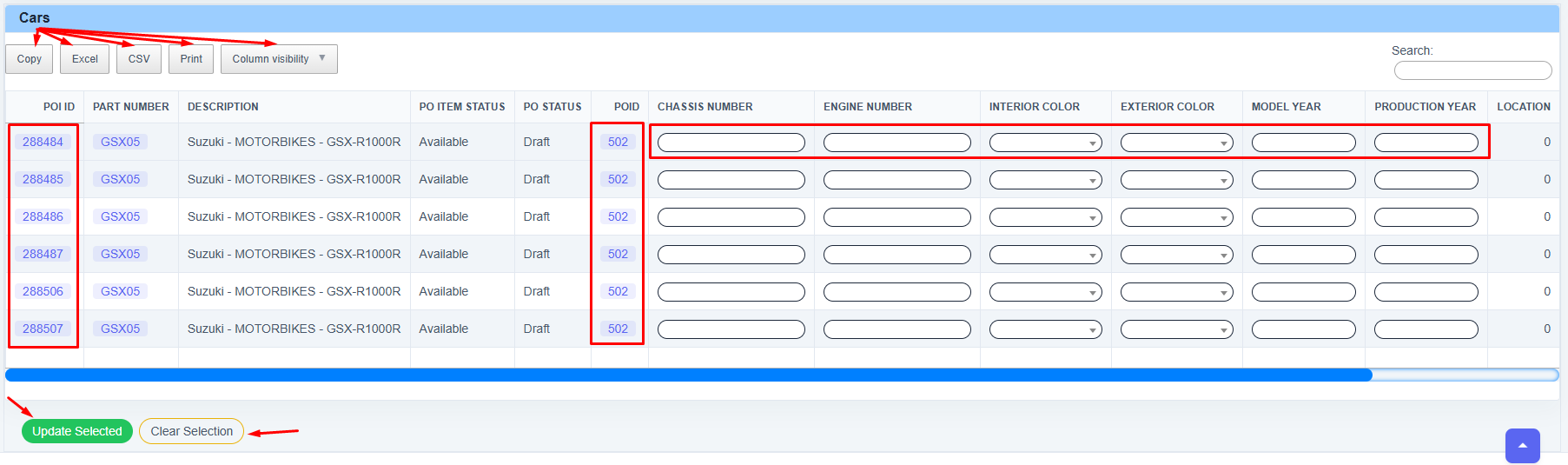
- Copy / Excel / CSV / Print: Use these to export the table data. You can copy it to your clipboard, download it as a spreadsheet, or print it.
- Column Visibility: Click this to hide or show specific columns to customize your view.
- POI ID: Unique identification numbers for each specific item (highlighted in the far-left red box).
- POID: The Purchase Order ID associated with these items.
- Description: Details the make and model (e.g., Suzuki GSX-R1000R).
- Status Columns: Shows if the item is "Available" and the current workflow stage (e.g., "Draft").
- Chassis & Engine Numbers: Blank boxes for typing in unique identification codes.
- Dropdown menus to select the Interior and Exterior colors.
- Model & Production Year : Fields to specify the year the vehicle was manufactured.
- Update Selected : This saves all the information you just entered into the system. Always click this after making changes.
- Clear Selection : This deselects the current rows if you want to start over or cancel your current selection.