Purchase Orders
Purchase Orders have been updated to improve item management and provide better control over amounts, taxes, discounts, as well as to facilitate tracking purchasing processes and related details.
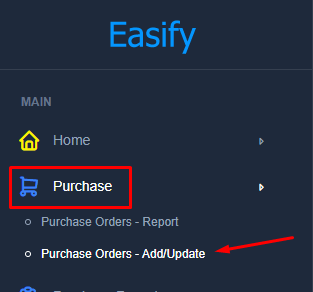
Add/Update Purchase orders
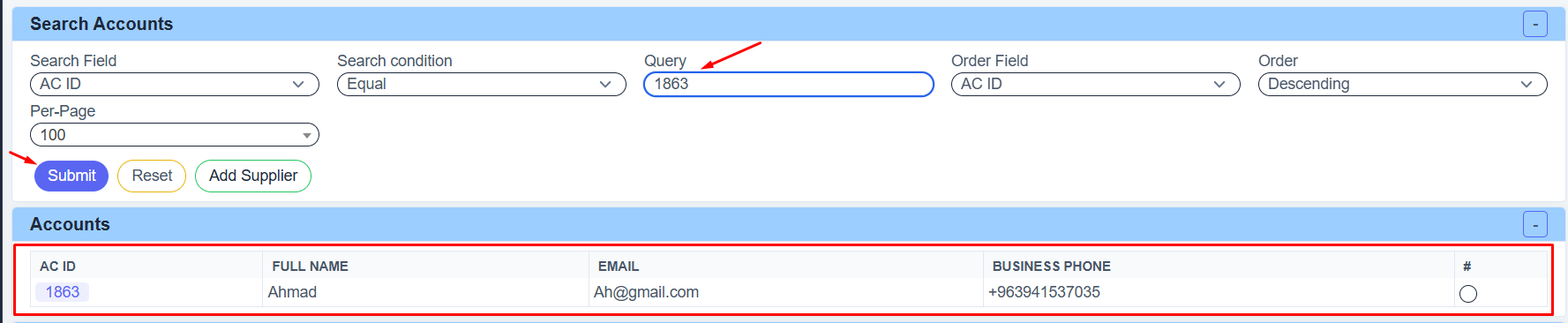
Search Accounts
- Select the Search Field to choose the information you want to search for, such as Account ID, Name, Email, or Tax Number.
- Choose the Search Method:
- Equal: If you want the exact same value
- Start With: If the text starts with a specific letter or number
- Contains: If the text includes specific words or numbers
- Not Contains: If the text does not include specific words or numbers
- Enter the word or number you want to search for in the Query field.
- Select the Order Field if you want to sort the results, for example by Account ID.
- Choose the Order Type:
- Ascending: From smallest to largest
- Descending: From largest to smallest
- Select how many results you want to display on each page in the Per-Page field.
- Click Submit to show the results.
- Click Reset to clear all filters.
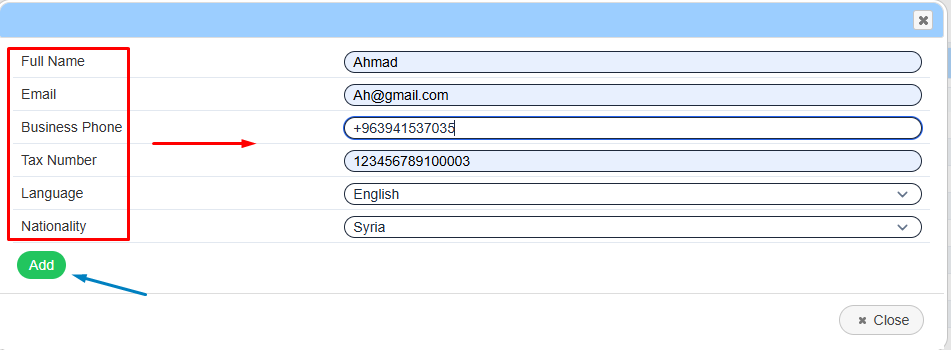
- Click Add Supplier to create a new supplier account.

Example Search Accounts
Example Add Supplier
Search Purchase Orders
- Select the Search Field to choose what you want to search for, such as Purchase Order ID, Reference ID, Notes, or Print Notes.
- Choose the Search Method to decide how the system will search:
- Equal: Find the exact same value
- Start With: Find text that starts with specific letters or numbers
- Contains: Find text that includes specific words or numbers
- Not Contains: Find text that does not include specific words or numbers
- Enter the word, number, or text you want to search for in the Query field.
- Select the Order Field to choose how the results will be arranged, such as by Purchase Order ID or Invoice Date.
- Choose the Order Type:
- Ascending: From smallest to largest
- Descending: From largest to smallest
- Select how many results you want to display on each page in the Per-Page field.
-
Choose the Date Field to decide which date the system will search by:
- Invoice Date: Search using the invoice date
- Create Date: Search using the created date
- Update Date: Search using the last updated date
- Choose the Date Search Method:
- Between: Search between two dates
- After: Search after a specific date
- Before: Search before a specific date
- Enter the required date or date range in the Date field.
- Click Submit to show the search results.
- Click Reset to clear all filters and start again.

Example Search Purchase Orders

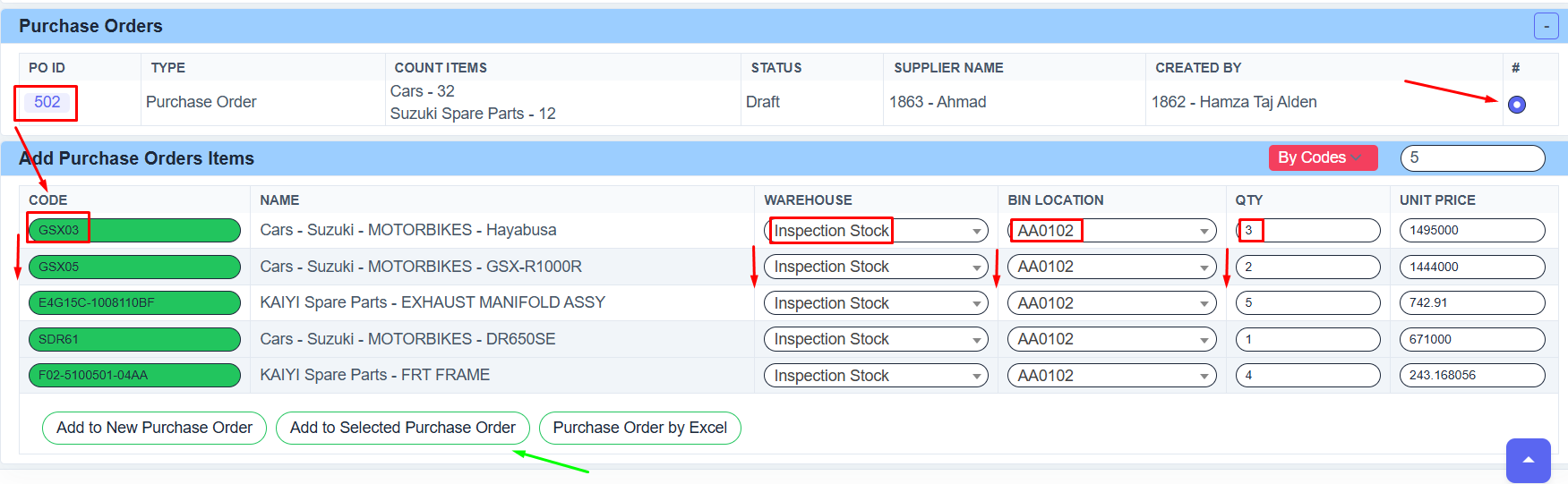
Add Purchase Orders Items
- Enter the Item Code in the CODE field for each product you want to add.
- The NAME field will display the item name automatically after entering the code.
- Select the Warehouse where the item will be stored.
- Select the Bin Location for the item inside the warehouse, if available.
- Enter the required quantity in the QTY field.
- Enter the item price in the UNIT PRICE field.
- Use the top-right option to choose the entry method, such as By Codes.
- Enter the number of rows you want to display for adding items.
- Click Add to New Purchase Order to create a new Purchase Order with these items.
- Click Add to Selected Purchase Order to add the items to an existing Purchase Order.
- Click Purchase Order by Excel to import items using an Excel file
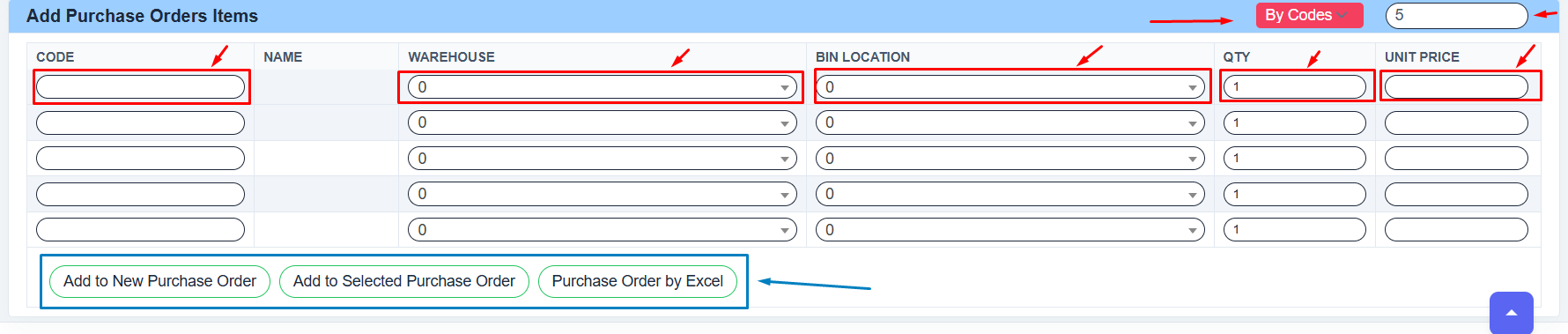
Example Add New Purchase Orders
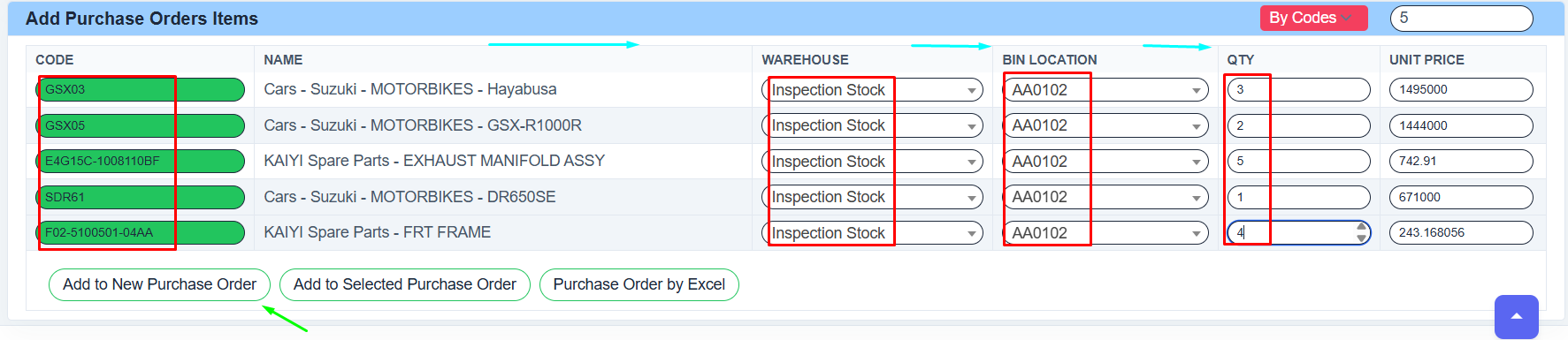
Example Add To Selected Purchase Orders